Showing posts with label Chromebooks. Show all posts

Sunday, 5 April 2015

What’s On My Chromebook Shelf Right Now (April 2015)


THE MOST USED APPS ON MY CHROMEBOOK, AND

WHY THEY’RE THERE


This is my latest Chrome OS shelf line up that I’ll probably stick with for at least the near future. While my iPhone and Google Nexus 7 Tablet are mainly used for leisure, my Chromebook is used mostly for work, I spend I’ve most of my day, it’s what I use to update this blog and work on various other projects. So I thought I’d do a post in the style of the what’s on my Mac Dock and why, but for Chromebooks, so here’s what’s on my Chromebook Shelf and why. First off we’ll cover some of the stock Chrome apps, and there are a few. The first is Chrome as it’s permanently placed on the Shelf by default, Files as it’s easier than having to go through the App Drawer to find it, finally I've got the Wallpaper Picker as it’s convenient for quickly changing my Desktop Wallpaper. Now onto the rest of my Apps.

Wednesday, 14 January 2015

Tech Air Tablet/Netbook Bag Review


I was looking for a bag to keep my HP Stream 7 Tablet, iPod Touch 5th Generation & backup Nokia Lumia 925 (backup phone) as well as there associated chargers along with the charger for my iPhone while I'm on the road. While browsing eBay I came across the Tech Air Black Netbook, iPad case for 7"- 11.6" for 7.99 GBP with free delivery.

Wednesday, 17 December 2014

LibreOffice on rollApp Vs Google Drive


LibreOffice on rollApp gives you the fully functioning LibreOffice Suite on your Chrome OS device like you get when you use Microsoft Office Online or Apple iWork iCloud Beta, but as it’s streamed from the rollApp website you have to be online while using it like you have to when using Microsoft Office Online or Apple iWorkk iCloud Beta.

Monday, 8 December 2014

iWork iCloud Beta Review


Like its Microsoft Office counter part Apples iWork iCloud Beta is as fully featured as its Offline Mac productivity suite. But considering Apple have slimmed down its Offline versions to keep continuity with the iCloud version.

Sunday, 7 December 2014

iPearl mCover For Acer C720/C720P Chromebook Follow-up (Part 3)


This will be my final Follow-up on this subject as the matter has been resolved satisfactory.

I received this comment from iPearl Europe on my last Article in this Follow-up series.

Hi Roland,
We are sending a new set of Acer 720 case to you, if you have not received, it's probably on the way, but it's coming...

and here is my reply to there comment.


Hi,
Ok thanks. 

The comment from iPearl came on Thursday the 4th of December when I wrote the Article and my reply was on Friday the 5th of December. From the comment by iPearl Europe I wasn't sure what to expect to receive in the Post, but today Sunday the 7th of December I received two lots of mail which was a shock in itself as there isn't normally any post on Sundays.

Thursday, 4 December 2014

iPearl mCover For Acer C720/C720P Chromebook Follow-up (Part 2)


After my last Article in this series I'm still kind of having trouble with iPearl, this time with iPearl Europe. Below is the current Email conversation that I've had with iPearl Europe.

Tuesday, 25 November 2014

iPearl mCover For Acer C720/C720P Chromebook Follow Up Review (Part 1)

After owning the iPearl mCover 9 months and three days it started to fall apart slightly. The rear folding leg on the left hand side broke on the inside of the base of the case meaning that the leg keeps falling down, making it hard to just slip it into my Laptop bag without having to think carefully how I'm sliding it in, and the rear right corner of the base of the cover where it wraps around the corner of the Chromebook has broken slightly.
How the rear left corner of the mCover looks un-broken

How the rear right corner of the mCover looks broken

Rear right fod ut leg broken


This is despite treating my Chromebook with care therefore while I've been using the mCover I've also been treating that with care, so the cover shouldn't just start falling apart when it's been treated as carefully as the Laptop that it covers. I decided to send an Email to iPearl on Sunday detailing my problems.

To who it may concern,

I bought an iPearl mCover for my Acer C720 Chromebook from your Amazon UK store on the 21st of February this year.

 After 9 months and three days of owning it the left hand leg has broken meaning that it constantly falls down when not in use, and the right hand rear corner has broken.

The case hasn't been treated roughly while in use, so quite why the left leg & right rear corner has broken I don't know.

I did a two part review of this cover on my blog over a week when I first received my cover and gave it a very favourable review, had I known that there was these two defects I wouldn't have given it such a favourable review.

Regards

Mr. Roland Hurt
I was shocked at how quickly I got a response from iPearl with it being a Sunday, as they replied to me within a few hours of me sending them an Email.

Thank you for contacting us.  We do have a 90 day warranty on our case, however your case is now out of warranty at this time

Thank you,
iPearl Inc

I was a little shocked that they only have a 90 day warranty on their cases as most Manufacturers have a 1 year warranty on their items. This means that since the cover has started to break after their 90 day warranty period I'm left ether with a broken product or out of pocket having to replace it.

Since I'd not left a Review of the cover on Amazon UK even though I'd had the case for over 9 months, it gave me the ideal opportunity to let people looking at the cover know what happens.

If the cover had been a cheap Chinese knock off bough on eBay then I could expect it falling apart quickly, but I bought the cover from the iPearl UK Amazon store, so I'd expect it to last years with care not just to last past its warranty before falling apart.

I'm a little angry that the case has started to fall apart so quickly as it cost me nearly £20 GBP when I got it. For the build quality since it doesn't even last 1 year without starting to fall apart despite been treated as if it's as fragile as the Laptop that it covers then it should be priced in the range of a cheap knock off Chinese cover sold on eBay.

I'm starting to wish that I'd left the second part of the review for a little longer than a week, so I would't have needed to write this Article, but I expected it to be of sufficient enough quality to have lasted years, especially when I first saw these covers reviewed on Android Central.

I said that I'd recommend the iPearl mCover in the second part of my initial review of the cover earlier in the year. If I was to do the same review now I'd have to think long and hard about whether I'd recommend the iPearl mCover or not. based on the fact that it's only covered by a 90 day warranty I'd probably not recommend it, but as it's the only hard shell cover for the Acer C720/C720P then I'd still recommend it but this time with a warning that it's only covered by a 90 day warranty and even if it is treated with care like the Chromebook that it's protecting it'll start to break after the 90 day warranty has expired.

Rant over

Roland

Sunday, 23 November 2014

What’s On My Chromebook Shelf Right Now (November 2014)


THE MOST USED APPS ON MY CHROMEBOOK, AND

WHY THEY’RE THERE


This is my latest Chrome OS shelf line up that I’ll probably stick with for at least the near future. While my iPhone and Google Nexus 7 Tablet are mainly used for leisure, my Chromebook is used mostly for work, I spend I’ve most of my day, it’s what I use to update this blog and work on various other projects. So I thought I’d do a post in the style of the what’s on my Mac Dock and why, but for Chromebooks, so here’s what’s on my Chromebook Shelf and why. First off we’ll cover some of the stock Chrome apps, and there are a few. The first is Chrome as it’s permanently placed on the Shelf by default, Files as it’s easier than having to go through the App Drawer to find it, finally I've got the Wallpaper Picker as it’s convenient for quickly changing my Desktop Wallpaper. Now onto the rest of my Apps.
  • Blogger. Since moving my blog over to Blogger from Wordpress I've started using the Blogger Chrome web app to work on my blog.
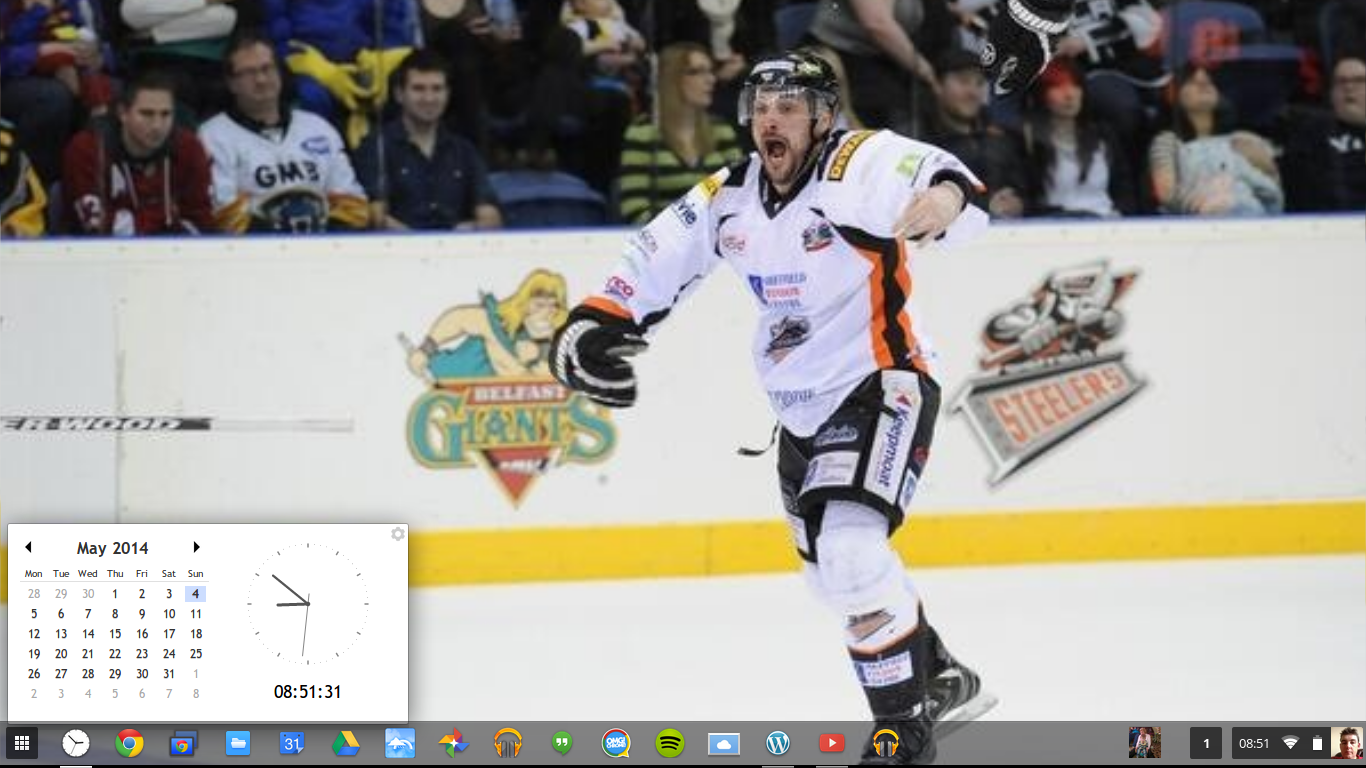
  • Clock Calendar.  Clock Calendar adds a nice convenient Month view Calendar and Clock that can be used like a widget.
Screenshot 2014-05-04 at 08.51.31

    Friday, 1 August 2014

    What’s On My Chromebook Shelf Right Now (August 2014)

    Screenshot 2014-08-01 at 18.03.22

    THE MOST USED APPS ON MY CHROMEBOOK, AND

    WHY THEY’RE THERE


    This is my latest Chrome OS shelf line up that I’ll probably stick with for at least the near future. While my iPhone and Google Nexus 7 Tablet are mainly used for leisure, my Chromebook is used mostly for work, I spend I’ve most of my day, it’s what I use to update this blog and work on various other projects. So I thought I’d do a post in the style of the what’s on my Mac Dock and why, but for Chromebooks, so here’s what’s on my Chromebook Shelf and why. First off we’ll cover some of the stock Chrome apps, and there are a few. The first is Chrome as it’s permanently placed on the Shelf by default, Files as it’s easier than having to go through the App Drawer to find it, finally I've got the Wallpaper Picker as it’s convenient for quickly changing my Desktop Wallpaper. Now onto the rest of my Apps.

    • Clock Calendar.  Clock Calendar adds a nice convenient Month view Calendar and Clock that can be used like a widget.
    Screenshot 2014-05-04 at 08.51.31

      Wednesday, 9 July 2014

      What's On My Chromebook Shelf Right Now (July 2014)

      Screenshot 2014-07-09 at 16.56.16


      THE MOST USED APPS ON MY CHROMEBOOK, AND

      WHY THEY’RE THERE

      This is my latest Chrome OS shelf line up that I’ll probably stick with for at least the near future. While my iPhone and Google Nexus 7 Tablet are mainly used for leisure, my Chromebook is used mostly for work, I spend I’ve most of my day, it’s what I use to update this blog and work on various other projects. So I thought I’d do a post in the style of the what’s on my Mac Dock and why, but for Chromebooks, so here’s what’s on my Chromebook Shelf and why. First off we’ll cover some of the stock Chrome apps, and there are a few. The first is Chrome as it’s permanently placed on the Shelf by default, Files as it’s easier than having to go through the App Drawer to find it, finally I’ve got the Wallpaper Picker as it’s convenient for quickly changing my Desktop Wallpaper. Now onto the rest of my Apps.

      • Clock Calendar.  Clock Calendar adds a nice convenient Month view Calendar and Clock that can be used like a widget.

      Screenshot 2014-05-04 at 08.51.31

        Sunday, 8 June 2014

        What’s On My Chromebook Shelf Right Now (June 2014)

        Desktop 1A


        THE MOST USED APPS ON MY CHROMEBOOK, AND

        WHY THEY’RE THERE

        This is my latest Chrome OS shelf line up that I’ll probably stick with for at least the near future. While my iPhone and Google Nexus 7 Tablet are mainly used for leisure, my Chromebook is used mostly for work, I spend I’ve most of my day, it’s what I use to update this blog and work on various other projects. So I thought I’d do a post in the style of the what’s on my Mac Dock and why, but for Chromebooks, so here’s what’s on my Chromebook Shelf and why. First off we’ll cover some of the stock Chrome apps, and there are a few. The first is Chrome as it’s permanently placed on the Shelf by default, Files as it’s easier than having to go through the App Drawer to find it, finally I’ve got the Wallpaper Picker as it’s convenient for quickly changing my Desktop Wallpaper. Now onto the rest of my Apps.

        • Clock Calendar.  Clock Calendar adds a nice convenient Month view Calendar and Clock that can be used like a widget.
        Screenshot 2014-05-04 at 08.51.31

          Wednesday, 28 May 2014

          Sunrise Calendar For Chrome/Chrome OS Review

          Sunrise-Calendar-Icon

          After using Sunrise Calendar for Chrome/Chrome OS for a week I prefer Sunrise Calendar over Google Calendar as it looks more modern than Google Calendar and is more in keeping with the rest of the Google Apps suite than Google Calendar, the multiple Calendar from multiple Calendar services is a bonus for anyone who needs to view and edit a Calendar from a different Calendar service such as iCloud which isn't available in Google Calendar and Offline mode is a huge bonus.   Sunrise Calendar has more unique features that I mentioned in my combined review, but at present I'm undecided whether to stick with Sunrise Calendar as my default Calendar, use Sunrise calendar and Google Calendar together or since I'm nearly always Online only use Google Calendar.   It’s been nice using Sunrise Calendar, but I’m not sure if it’s the right Calendar for me since I can use the other Calendar services that I use through their own websites.

          Roland

          Monday, 26 May 2014

          What's On My Chromebook Shelf Right Now (Late May 2014)

          Screenshot 2014-05-21 at 18.01.23

          THE MOST USED APPS ON MY CHROMEBOOK, AND


          WHY THEY'RE THERE


          This is my latest Chrome OS shelf line up that I'll probably stick with for at least the near future. While my iPhone and Google Nexus 7 Tablet are mainly used for leisure, my Chromebook is used mostly for work, I spend I've most of my day, it's what I use to update this blog and work on various other projects. So I thought I'd do a post in the style of the what's on my Mac Dock and why, but for Chromebooks, so here's what's on my Chromebook Shelf and why. First off we'll cover some of the stock Chrome apps, and there are a few. The first is Chrome as it's permanently placed on the Shelf by default, Files as it's easier than having to go through the App Drawer to find it, finally I've got the Wallpaper Picker as it's convenient for quickly changing my Desktop Wallpaper. Now onto the rest of my Apps.

          • Clock Calendar.  Clock Calendar adds a nice convenient Month view Calendar and Clock that can be used like a widget.


          Screenshot 2014-05-04 at 08.51.31

          • Google Calendar. I Use Google Calendar on a daily basis, not always to add events. So it's essential to have Calendar in easy reach.

          • Google Drive. It's essential for me to always have quick access to all of my work with more advanced features than using Files.

          • Full Screen Weather. I use Full Screen Weather, because it's always nice to keep an eye on the weather.

          • Google+ Photos. I use Google+ Photos as it's a nice simple way to view all my photos that are backed up on Google+& even shared to Google+.

          • Google Play Music. I use Play Music as a lot of my music is already stored on Play Music, and having it on the Shelf makes it easy to use when I want to listen to anything.

          • Hangouts call. Hardly ever used, but it's still there if I need it.

          • iCloud. I've replaced WeVideo with iCloud since I never did my Home Office Tour video, an since I've started using my iCloud email address as well as my Hotmail,Outlook & GMail addresses I thought that I might as well add it to my Shelf line up and maybe I'll get some use out of the other iCloud features.

          • OMG Chrome. As it's nice to keep an eye on the latest Chrome & Chrome OS news.

          • Spotify.  I like using Spotify & it's nice to be able to use Spotify from the Shelf.

          • Sunrise Calendar. I've started to use Sunrise Calendar on my iPhone and the Android Beta on my Google Nexus 7 for review purposes, so I thought that it makes sense to use the Chrome/Chrome OS version as well and it has some nice extra features that you don't get in Google Calendar, so Google Calendar has taken a back seat for now.

          • WeVideo. I've added WeVideo to my shelf as I'm planning on doing a tour of my Office/Desk at some point during the next week and thought that it would be an ideal time to experiment with WeVideo, so it's gained a place on my shelf for at least the next few weeks.

          • WordPress.com. Since my blog is hosted on WordPress.com it makes sense to keep the WordPress.com app on the Shelf.

          • YouTube. I watch YouTube videos nearly every day, so keeping the YouTube app on the Shelf makes sense.

          • Google Play Music Mini Player. Having the Google Play Music Mini Player on the Shelf means that I can get access to some of the Google Play Music features without having to go into the Google Play Music app, would be nice to be able to use the Google Play Music Mini Player while the Google Play Music app is closed though.


          That's everything on my Chromebook Shelf. I've got loads of other apps on my Chromebook, but the list I've provided in this post are the select few that I use enough to allow to grace a spot on my Shelf. That's enough about my Chromebook, what about you? Be sure to share your Chrome Shelf setups in the Comments.

          Roland

          Google+

          Friday, 25 April 2014

          New Easy Unlock Feature Coming Soon To Chrome OS

          google-chromebook-logo

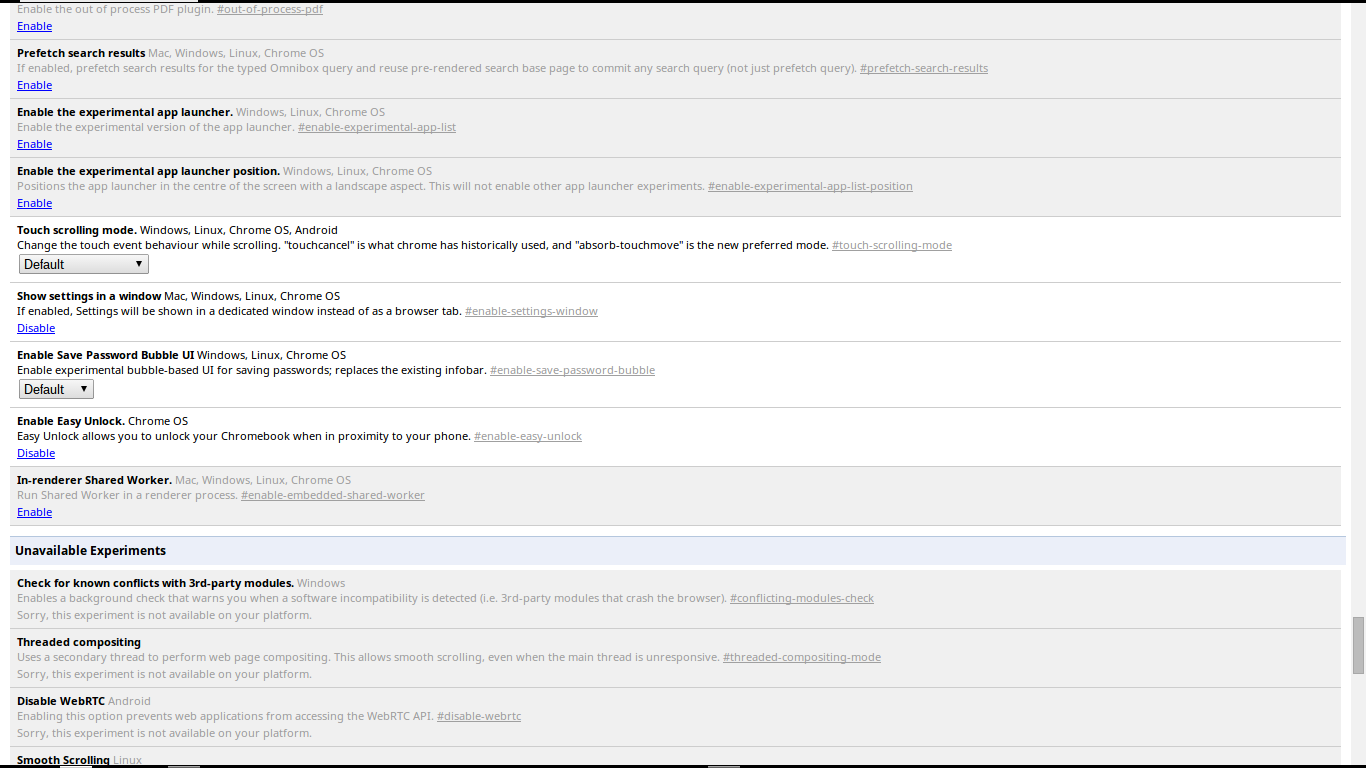
          In the latest Chrome OS Development release there is a new feature hidden under a Chrome Flag, this feature is called Easy Unlock.

          [caption id="attachment_2087" align="aligncenter" width="300"]Easy Unlock Chrome Flag Easy Unlock Chrome Flag[/caption]

          [caption id="attachment_2085" align="aligncenter" width="300"]Easy Unlock option in Settings. Easy Unlock option in Settings.[/caption]

          Once enabled Easy Unlock Setup can be found in Settings > Show Advanced Settings, once you select Setup Easy Unlock you get a Setup Wizard.

          [caption id="attachment_2086" align="aligncenter" width="300"]Easy Unlock Setup Wizard Easy Unlock Setup Wizard[/caption]

          The Easy Unlock Setup Wizard currently doesn't work, but it does point towards how it will work as when you select Find your phone it switches on the Bluetooth Radio in your Chromebook.

          Conclusion


          The Chrome OS Easy Unlock reminds me of a tiny hardware device that I saw in my local PC World years ago where you plugged a USB Dongle into your Windows Computer or Laptop and a puck was used to lock or unlock your Computer depending on if the puck was in rang of the USB Dongle in your Computer.

          At present it's impossible to tell if Easy Unlock will only unlock your Chromebook or if it'll lock your Chromebook as well. If it only unlocks when it goes live it'll be nice if Google improve Easy Unlock to lock as well.

          Roland

          Google+

          Tuesday, 22 April 2014

          What's On My Chromebook Shelf Right Now

          IMG_0180

          THE MOST USED APPS ON MY CHROMEBOOK, AND


          WHY THEY'RE THERE


          While my iPhone and Google Nexus 7 Tablet are mainly used for leisure, my Chromebook is used mostly for work, I spend most of my day, it's what I use to update this blog and work on various other projects. So I thought I'd do a post in the style of the what's on my Mac Dock and why, but for Chromebooks, so here's what's on my Chromebook Shelf and why. First off we'll cover some of the stock Chrome apps, and there are a few. The first is Chrome as it's permanently placed on the Shelf by default, Files as it's easier than having to go through the App Drawer to find it, finally I've got the Wallpaper Picker as it's convenient for quickly changing my Desktop Wallpaper.

          Now onto the rest of my Apps.


          • Dashboard. I use Dashboard as it adds a Mac OS X style Dashboard to Chrome OS.

          • Google Calendar. I Use Google Calendar on a daily basis, not always to add events. So it's essential to have Calendar in easy reach.

          • Google Drive. It's essential for me to always have quick access to all of my work with more advanced features than using Files.

          • Full Screen Weather. I use Full Screen Weather, because it's always nice to keep an eye on the weather.

          • Google+ Photos. I use Google+ Photos as it's a nice simple way to view all my photos that are backed up on Google+& even shared to Google+.

          • Google Play Music. I use Play Music as a lot of my music is already stored on Play Music, and having it on the Shelf makes it easy to use when I want to listen to anything.

          • Hangouts call. Hardly ever used, but it's still there if I need it.

          • OMG Chrome. As it's nice to keep an eye on the latest Chrome & Chrome OS news.

          • Spotify.  I like using Spotify & it's nice to be able to use Spotify from the Shelf.

          • WordPress.com. Since my blog is hosted on WordPress.com it makes sense to keep the WordPress.com app on the Shelf.

          • YouTube. I watch YouTube videos nearly every day, so keeping the YouTube app on the Shelf makes sense.

          • Google Play Music Mini Player. Having the Google Play Music Mini Player on the Shelf means that I can get access to some of the Google Play Music features without having to go into the Google Play Music app, would be nice to be able to use the Google Play Music Mini Player while the Google Play Music app is closed though.


          That's everything on my Chromebook Shelf. I've got loads of other apps on my Chromebook, but the list I've provided in this post are the select few that I use enough to allow to grace a spot on my Shelf. That's enough about my Chromebook, what about you? Be sure to share your Chrome Shelf setups in the Comments.

          Roland

          Google+

          Wednesday, 16 April 2014

          Microsoft LifeChat LX-3000 And Chrome OS

          google-chromebook-logo

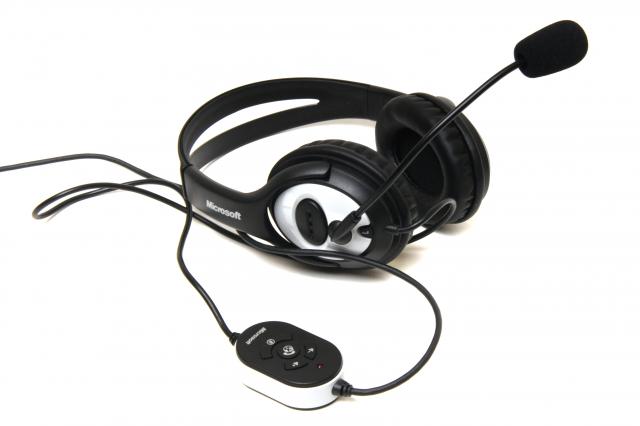
          When I was using Chromium OS on my Toshiba Satellite C660-15R I was unable to use my Microsoft LifeChat LX-3000 USB headset as it wasn't detected by the OS.

          Microsoft LifeChat LX-3000

          Today I tried using the same headset on my Acer C720 Chromebook running Chrome OS 35.0.1916.27 dev and my Microsoft LifeChat LX-3000 gets detected by the OS and the headphones work perfectly fine, but I've not had chance to check the Microphone side of the headset yet.

          The microphone side of the Microsoft LifeChat LX-3000 gets detected by Chrome OS so I assume that it will work with Chrome OS, I'll update at a later date when I've had chance to try it out properly.

          On a side note my Bluetooth headset that I got for my mobile phone works with Chrome OS but only as headphones as Chrome OS doesn't detect that it has a microphone built-in and instead uses the Chromebooks internal speaker.

          Conclusion


          The sound coming from the Microsoft LifeChat LX-3000's headphones is comparable to that of the internal speakers of the Acer C720 Chromebook, but the Bass coming from the Microsoft LifeChat LX-3000's headphones could be slightly more noticeable compared the Acer's internal speakers.

          The Microsoft LifeChat LX-3000 make the perfect headphones for anyone who listens to music via Spotify or Google Play Music & for watching videos on YouTube, Netflix, Google Play Movies & TV or any of the other video streaming services that are available.

          If the microphone side of the Microsoft LifeChat LX-3000 works in Chrome OS then it's the perfect headset for YouTube Producers or anyone that uses Chrome OS for creating videos and needs a headset for monitoring audio as well as adding voice overs, & for anyone that uses Google Hangouts and wants to use something better than the internal speakers and microphone.

          Roland

          Google+

          Tuesday, 15 April 2014

          Microsoft Launch Office Web Applications Launchers for Chrome & Chrome OS

          MS-Office-2013

          Microsoft have now launched their free Office web apps as Chrome & Chrome OS app launchers. Joining the existing Chrome & Chrome OS app launchers for OneDrive & Outlook.com launchers for Word, Excel, PowerPoint & OneNote, all but Excel are available by searching for the relevant app in the Chrome web Store, for anyone who wants the PowerPoint launcher here's the Chrome web Store listing (courtesy of OMG Chrome).

          The Microsoft Office web apps work like Google Docs, Google Slides & Google Sheets by auto saving your document while you work, the only difference is that the Microsoft Office web apps look exactly like the Microsoft Office 356 Suite with exactly the same UI as the full Office 365 Suite, the only difference is that the File Menu is slimmed down slightly with the lack of  a manual Save & Save As.

          The Office 365 web apps look more professional compared to the Google Office suite due to the more complex UI, but they both do the same tasks with ease even though the Google Office suite offers the ability to work Offline where as the Office web apps are purely online only.

          Google was the first to launch Office in the cloud when it Launched Google Docs (now Google Drive), closely followed by Microsoft with office web apps. Naturally Google Drive was the only installable web apps on Chrome OS although Microsoft Office web apps was available through Live.com and now Outlook.com websites, when RollApp recently launched it gave Chrome OS users the ability to use the full & not modified for Cloud Computing LibreOffice suite (with installable web app launchers), now Microsoft join in late to the party bringing their 3 web apps to Chrome OS as installable web app Launchers, Word, Excel, PowerPoint & OneNote join the already available Outlook.com & OneDrive web app launchers.

          Can Microsoft entice none Office 365 subscribers to Office Online or will the small amount of free storage on OneDrive compared to the 15GB of free storage space on Google Drive & the offer of 100GB of free Google Drive storage on top of your standard free storage for 2 years for anyone who buys a Chrome OS device be enough to keep Chrome OS users with Google Drive.

          I've got  Google Drive, LibreOffice on RollApp & the Microsoft Office web apps installed on my Chromebook, but other than giving LibreOffice via RollApp a go for articles on the Blog I tend to use Google Drive exclusively (probably due to the extra 100GB of free storage space for 2 years & it's integration with the Chrome OS Files App), but I'll probably give the Office web apps a try as I used to use them before I started using Google Drive (Docs as it was known as at the time).

          Conclusion


           Microsoft must really see Google Drive as serious competition to launch Office web app launchers for Chrome/Chrome OS, but for Chrome OS users it brings more choice to the table.


          Roland


          Google+

          Sunday, 13 April 2014

          Chrome OS More Than Just The Chrome Web Browser

          Chromium OS Desktop   Chrome OS & Chromebooks have a long-standing false reputation of not being a real OS or a real Laptop, but being just the Chrome Web Browser. Back in 2007 this was the case as Chrome OS was basically a full screen Chrome web browser with an app launcher tab and the ability to pin frequently used tabs, now fast forward to today and Chrome OS has evolved into what is more like a version of Windows than what it started out as, but yet it's still stuck with the it's just the Chrome web browser reputation and Chromebooks are getting called not real Laptops just because they don't run conventional programs.

          Everything is synced to your google account


          Unlike Windows 8 where only certain settings are backed up to your Windows Account (Hotmail) all your documents, Chrome extensions, Bookmarks & Apps are backed up to your Google Account (GMail), and the only  things that aren't backed up are anything that you've got stored on your local storage (Downloads folder), anything stored on an SD Card or USB Flash Drive is of course backed up away from the Local Storage.


          This is a huge bonus as if you buy a new Chromebook, Chromebox or recently released Chromebase then it's just a case of logging into your Google Account and all of your apps and extensions are automatically installed for you to use & if you log into the Chrome web browser on a Windows, Mac or Linux machine your bookmarks, extensions & a limited amount of apps are installed (I've not managed to get all my Chrome apps to install in the Chrome web browser on Windows yet), & since all your documents are stored in Google Drive there ready to use no matter what web browser or OS you're using.


          Chrome OS is secure


          Chrome OS doesn't require Virus Protection & if you lose your Chromebook or if it gets stolen all you have to do is change your Google Account password and all your data is safe. Chrome OS also has built-in security that wipes your Chromebook should anyone try a brute force attack to gain access to your Chromebook. There is a Developer mode in Chrome OS, but should anyone try to enter Developer mode to gain access to your lost or stolen Chromebook it'll get wiped while entering Developer mode. Since not much is kept on the internal storage of a Chromebook if anyone tried to gain access to your data simply by creating another user account on the device all they will get is a blank Downloads folder & a Google drive folder and no way to browse to your data.

          Chrome OS is based on Linux


          From Chrome OS's Launch in 2007 to February 2010 it was based on Ubuntu Linux, then in February 2010 Chrome OS switched to Gentoo Linux.

          Chromebooks for everyone


          Chromebooks are truly for everyone, they're cheap compared to their Windows or Mac counterparts, they're easy to use with a simple UI that anyone could navigate easily, they don't have any software pre-installed that's not needed and only come with the basics pre-installed like a Camera app for the built-in Webcam, a Calculator, File Manager, Wallpaper switcher, Chrome web browser, Chrome web store & a basic help system. Chromebooks are also maintenance free and all OS updates are applied when the Chromebook is restarted.

          Conclusion


          While the false reputation of Chrome OS being just the Chrome web browser and Chromebooks not being real Laptops was true in the early days of Chrome OS today Chrome OS has evolved to an OS in its own right and it's evolving with every new update, and more and more Offline apps are making Chromebooks more functional when away from an internet connection.


          Chrome OS can now be seen as a low-cost competitor to Windows and Mac for people who need a cheap lightweight Laptop that they can take everywhere with them or for someone who doesn't want the expense  of an all bells and whistles Windows or Mac Laptop that's expensive, high maintenance and in Windows case Trialware riddled Laptop that needs a lot of cleaning to regain HDD space that could be used for more apps or data.


          Cloud based computing where all your data and apps are backed up Online is definitely the future of computing as it takes all hard work out of buying a new computer in the future as everything is just there ready for you to use once you've logged in & the same goes for restoring your computer back to factory defaults.


          Roland


          Google+

          Friday, 11 April 2014

          RollApp Adds The Ability To Use LibreOffice And More For Chrome OS Users (Follow up)

          Rollapp-TMT-Banner300

          It's just over 1 month since I first reviewed RollApp and I've decided to re-visit the LibreOffice Chrome Apps from RollApp and compared to when I originally tried them they seem to be a lot more stable and actually work like they're supposed to. The one little annoyance is the introduction of a video ad trying to get you to subscribe to individual RollApp Applications for 99c a month or all RollApp apps for $6.99 a month, but I'll take this little annoyance for access to working LibreOffice Applications over no ad's and broken LibreOffice Applications.

          GIMP Image Editor


          After a positive experience with the LibreOffice Applications I thought I'd give the GIMP Image Editor App a try, so I downloaded the Chrome App for the  GIMP Image Editor RollApp App only to have  a less that expected experience as after the short ad and the Application Splash Screen it just dumps back to the Chrome OS Desktop.

          After doing a quick search for the GIMP Image Editor on the RollApp website I discovered that the GIMP Image Editor isn't available on RollApp despite the fact there is a GIMP on RollApp Chrome Application available in the Chrome Web Store which seems rather strange.

          Conclusion


          Since the first time I tried RollApp it's come along way and gives Chrome OS users more choice of Applications to use, even though a lot are run via the RollApp website with only LibreOffice Writer, Calc & Impress along with openOffice Impress being available as downloadable Chrome Applications.

          The only downside to using the RollApp Chrome Applications is that you can only save to Google Drive and not have the ability to save to your local storage, which is no big deal, but if you save a lot of files then you'll eat into your Google Drive Storage. As long as you remember to download and re-upload in google Docs formats any files that you're expecting to keep for a long time should minimize any high Google Drive usage.

          Roland

          Google+

          Monday, 3 March 2014

          iPearl mCover Hard Shell Case for Acer C720 / C720P series Chromebook Review (Part 2)

          iPearl mCover Hard Shell Case for 11.6in Acer C720-C720P series Chromebook Colours

          The iPearl mCover Hard Shell Case comes well packed. Not only does each individual piece come individually wrapped for protection, but it comes in a thick plastic bag that can be used as a pouch for the C720.

          Installation went like a breeze and the Covers hold on pretty well considering that the C720 has some unusual design elements. even though I've got the mCover on my C720 I still keep it in the original fabric pouch that it's wrapped in along with keeping the fabric sheet that protects the screen from the Keyboard, I also keep it in the plastic pouch that the mCover came in. Since the pouch that the mCover comes in has a handle it makes it easy to pull my C720 out of the Laptop Messenger bag that I use to keep my Chromebook along with accessories and the charger.

          Using the iPearl mCover for a week


          After using the iPearl mCover on my C720 for a week I've got to say that it adds a good layer of protection without adding extra weight or obscuring the ports. I managed to get a slight but noticeable scuff on the rear right comer of my C720 and after adding the mCover it totally obscures the scuff thanks to the dark but translucent base cover. The lid cover is opaque but translucent enough that the Acer and Chrome branding still show through, the bottom cover is totally translucent.

          The mCover definitely adds a noticeable layer of protection without sacrificing any of the stylish looks of the C720 or adding any noticeable weight. even though the rear of the C720 is left un-protected  to allow for the C720 to open and not obscure the rear vent, along with the sides being left un-protected to allow easy access to all the ports it still will give protection to the sides and rear of the C720.

          The bottom cover has loads of ventilation hole. The front feet are made from Silicone rubber while the rear feet are made of the same material as the cover but do have a soft touch feel to them to aid in gripping to a table. There is a nice bonus on the bottom of the cover in the form of two-fold down legs that are positioned just in-front of the rear feet and slightly in from the edge of the cover.

          The fold down feet allow for a more comfortable angle for the keyboard for typing, to add a slight raised position of the screen when using the C720 on a desk ether while using an external keyboard, mouse & external screen or if just using the C720 with an external screen.

          Conclusion


          The iPearl mCover is definitely worth getting if you want to protect your C720 or if you want to add a splash of colour to your C720. With a choice of 9 colours there is definitely a colour that will suit anyone.


          Would I recommend the iPearl mCover 


          When it comes to recommending a cover for the Acer C720 then I'd definitely recommend the iPearl mCover as it's the only cover available that's not a pouch or a sleeve.

          The mCover is a case that will add a splash of colour to any C720 and allow you to give your C720 a personal touch that goes way beyond just the Desktop Wallpaper while still keeping the sleek stylish looks of the C720 as well as adding a minimal amount of weight and minimal bulk, but also adding a very noticeable amount of protection.

          the iPearl mCover is definitely worth the £19.99GBP price tag on Amazon, and I can see myself using the mCover for the life of my C720 as it's the only cover on the market, but it'd be nice to see some of the folio cases that are available for Mac Laptops along with some of the other hard shells available for Macs having Chromebook versions as well.

          A keyboard cover is now a sorely missed piece of protection for Chromebooks.

          Roland

          Previous

          Google+

          Advertisement

          BBC News - Sheffield & South Yorkshire