Showing posts with label Cloud Computing. Show all posts

Thursday, 7 August 2014

MultCloud First Use & Initial Impressions

cfyfwkoe6ypqagtr1pml


I just wanted to get some form of a review out for this service while my Broadband connection isn't stopping me from being able to use this service properly, so here's my first impressions.

sign-up process


The sign-up process is simple and  straight forward, but as I'd originally set out to do a full review last week I forgot to get a Screenshot of the sign-up screen, but all you need to do is provide an email address, username and password to create your account.

Adding Cloud Storage Accounts & a look at the UI


Adding Cloud Storage Accounts to MultCloud is a simple process as the following four pictures show.

List of Cloud Storage Services 1
 List of Cloud Storage Services 1

Wednesday, 4 June 2014

Teamlab Office Review

TeamLab


Teamlab Office allows you to integrate your Google Drive, OneDrive, Box & Dropbox Accounts into one simple interface and you also have the ability to edit and create Documents like you can with Google Drive & Microsoft OneDrive. Unlike Google Drive & Microsoft OneDrive you can create & edit Text Documents (Google Docs & Microsoft Word), Spreadsheets (Google Sheets & Microsoft Excel) & Presentations (Google Slides & Microsoft PowerPoint).

Teamlab is free for Personal use and via a Subscription for Enterprise use or if you need the extra features available in a Subscription, Teamlab also allows Enterprises the ability to run Teamlab on their own Personal Servers instead of on the Teamlab Servers. Teamlab is a viable alternative for someone who needs more from a Cloud Office, but it's no substitute for A Google Apps subscription.

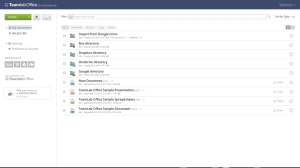
[caption id="attachment_2311" align="aligncenter" width="300"]The Teamlab Office Dashboard. The Teamlab Office Dashboard.[/caption]

The Teamlab Office Dashboard is less cluttered than the one for Google Drive, this shows that it's got Enterprise Cloud Computing at its heart, but maybe this could be a little daunting for someone that's only used to using Google Drive, this comes with one big bonus as you get the ability to add Google Drive, Microsoft OneDrive, box & Dropbox Accounts to Teamlab Office which isn't available with the likes of Google Drive & Microsoft OneDrive.


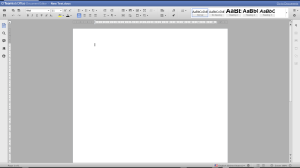
[caption id="attachment_2312" align="alignleft" width="300"]Teamlab Office WordProcessor. Teamlab Office Word-processor.[/caption]

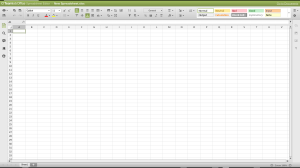
[caption id="attachment_2313" align="alignleft" width="300"]Teamlab Office Spreadsheet. Teamlab Office Spreadsheet.[/caption]

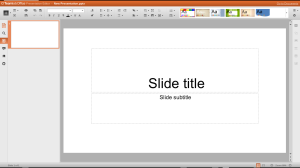
[caption id="attachment_2314" align="alignleft" width="300"]Teamlab Presentation. Teamlab Presentation.[/caption]


The Teamlab Office Applications are far more polished than the Office Applications in Google Drive and look like older versions of Microsoft Office Applications so should be easily recognizable to anyone who has used Microsoft Office in the past. The Teamlab Office Applications don't look as polished and modern as the latest Microsoft Office Applications available in OneDrive.

Conclusion


If you're looking for an alternative to Google Drive (including Google Apps) or Microsoft OneDrive (including Office 365) or something that allows you to combine all of your Cloud Computing services into on and still have a fully featured set of Office Applications then Teamlab is the only choice at the moment, and at present Teamlab Personal offers Unlimited Storage.

Roland

Google+

Monday, 19 May 2014

Cloudhq The Easy Way To Integrate All Your Cloud Storage Accounts Into Chrome OS

download


If like me you rely on Chromebooks as your Laptop of choice but have a Microsoft Account, a Dropbox Account, a box Account as well as your Google Account you'll find that the Chrome OS Files App is lacking in integration for your other Cloud Storage Services, then Cloudhq could be the answer to your problems.

With Cloudhq you can synchronize all your Cloud Storage Services to a folder for each service on your Google Drive Account which means that you can easily get to all your important files no matter if you're using your Chromebook or a Windows or Mac Computer, and with the Sidebar Customization in the Chrome OS Files App you can even add a link directly to the folder of one of your Cloudhq synchronized services.

[caption id="attachment_2201" align="aligncenter" width="300"]box, Dropbox and OneDrive integrated into the Chrome OS files app via Cloudhq and Google Drive box, Dropbox and OneDrive integrated into the Chrome OS files app via Cloudhq and Google Drive[/caption]

Being able to have all of your Cloud Storage Services integrated into the Chrome OS files App as well as being able to get access to them from any computer without having to sign into multiple accounts and having multiple browser tabs open, by just having one tab with your Google Drive Account open and the ability to drag and drop files without having to go through the slow uploading process is a bonus for productivity as well as convenience.

Cloudhq has multiple different Account tiers ranging from a free account that gives you 1 sync pair limited to 50 files (14 days of the Premium tier) to the Business tier that gives you 10 sync pairs with unlimited files and access to all the features of Cloudhq.

If you want to give Cloudhq a try then hit the link bellow.

Cloudhq free-$29.90/month: Try Premium Free for 30 days

Roland

Google+

Monday, 20 February 2012

Google Chrome OS Review

For this Google Chrome OS review I used an Advent 4213 Netbook.

Spec
10.2” widescreen
Intel Atom N270 Processor Running at 1.6GHZ
1GB DDR2 RAM
160GB HDD

Integrated
Integrated Graphics Card
Integrated Webcam
Integrated Bluetooth
Integrated Mobile broadband Modem
Integrated 802.11 b/g Wireless

The review
Installation

Once the Chrome OS Disk Image is downloaded and burnt to a CD you boot directly into a Live Google Chrome OS environment with nothing installed onto your Computers HDD, this is ideal if you just want to try Google Chrome OS before committing to Installing it or if you are running on a Netbook with no HDD.

If you decide to Commit to running Google Chrome OS as your main operating system then there is a link on the Chrome Desktop to a rather basic Installer.  The Installer is basic because the only things that are installed are a rthe Gnome Window Manager, Libre Office and the Google Chrome Web Browser and that's all that is part of OS, all other Apps are run inside Google Chrome.

The Home Page in Google Chrome is like a web version of the iPhone app launcher with icon links to some default web apps including GMail, Google Docs, Google Music, Google+, Picassa, Google Calendar and many more.

Conclusion

Chrome OS is a pretty good OS for cloud computing but if you want more of a polished looking OS and don't want to rely on being connected to the Internet 24/7 to work then I'd keep clear of Chrome OS and use something that Allows you the ability to do more Offline, Libre Office makes up for the short fall of having to be online all the time as you've at least got an offline Office Suite but the lack of Offline email & Calendar may be a deal breaker for some people.

Roland


Google+

Advertisement

BBC News - Sheffield & South Yorkshire