Wednesday, 5 February 2014

Living With The Acer C720 Chromebook for A Month (Part 8)

google-chromebook-logo

I mentioned Chrome Remote Desktop in Part 7 of this series, but in this part I'm going to talk more in-depth about Chrome Remote Desktop.

You'll need Chrome Remote Desktop  Installed on your Chromebook and as long as you've got Chrome installed on you other Computer and are logged in to Chrome with the same Google Account as on your Chromebook Chrome Remote Desktop will get synced to your Chrome Apps folder.

Setting up Chrome Remote Desktop


To set up Chrome Remote Desktop you just need to make sure it's Authorized on both devices and that it's enabled on the device that you want to Remotely connect to and have set up a PIN you're all set to go.

Using Chrome Remote Desktop


Once you're logged into Chrome Remote Desktop with the PIN you set up when setting up Chrome Remote Desktop, you're presented with a fully scaled Desktop that is fully functional as if you were set at it.

Everything runs smoothly with no lag, but I can't say that you'll have the same experience if you're trying to play Battlefield 4 Online as I'm going to assume that you'll get some serious lagging as your Network will hit a bottle neck with the intensive through put to and from the Internet for the game along with streaming your desktop to your Chromebook, but for something like the Sims or just using a Windows or Mac application you shouldn't have any trouble at all.

Roland

Next      Previous

Google+

Sunday, 2 February 2014

Living With The Acer C720 Chromebook for A Month (Part 6)

google-chromebook-logo   When it comes to playing music in Chrome OS is handled by Play music, although locally stored music can be played as well. Other streaming services such as Spotify can be used for listening to music,but if you live in a country that is covered by the Apple iTunes Radio service you'll obviously be out of luck as iTunes isn't available on Chrome OS. If you want to use local storage you'll probably not get much of a choice of music on the 16GB of internal storage, especially if you keep some videos, pictures and Documents on your internal storage. You can also use your Google Drive storage to store music, but unlike with videos I've not been able to get music to stream from Google Drive. I don't know if it was just the particular mp3 that I downloaded from my Play Music Library, but then again there really isn't a point of being able to stream music from Google Drive when you can store 2000 songs for free right in Play Music. The reason that you can stream videos from Google Drive is that the Google Play Movies & TV app doesn't support the upload of videos.

Conclusion


If you combine Google Play Music with a streaming service such as Spotify you'll have a decent portable Music Player & if you connect that with the video capabilities it becomes a solid all round media player.


The size of the speakers in the Acer C720 may be small but they're loud, and don't distort at full volume.


Roland


Previous


Google+

Saturday, 1 February 2014

Living With The Acer C720 Chromebook for A Month (Part 5)

google-chromebook-logo

In this part I'll talk more in-depth about video playback with the Acer C720.

YouTube


The Acer C720 plays back all YouTube videos without a problem, I've not had any problem playing back Standard Definition, 720P HD, 1080P HD & even 4K HD. I really can't see the point of why anyone would want to playback a 4K video on an 11.6" Ultrabook, but out of curiosity when I saw the 4K option on a YouTube I had to try it out to see how well the Acer C720 would handle it.

Locally stored videos


The Acer C720 can handle locally stored or streamed over USB from an external HDD all video formats that you can throw at it ether natively or via a third-party video player, the only slight problem I've come across was when I tried to playback an episode of Game Of Thrones in .mkv format, where the video played-back but it couldn't playback the audio for some reason, and so far I've not found a way to playback .mkv encoded videos, but at least a Chromebook can be used as a portable media player & the inclusion of a full-sized HDMI port on the Acer C720 means that it can be hooked up to a TV and be used as an inexpensive media player even though the 16GB of SSD storage is a bit limiting.

Streaming videos


I've not really tried using streaming video services like Netflix on the C720 yet but it's possible to store videos on Google Drive and stream them to the C720 but the free 100GB of Google Drive for 2 years combined with the free as standard 25GB of Google Drive storage space might be a bit of a limiting factor due to Google Drive being used to the rest of your data, and a subscription to a higher storage plan might be wise but once you go past the 100GB plan they start to get on the high price  a month or year.

Conclusion


The Acer C720 is a capable machine for video playback, but you're going to have to think hard about whether you're going to store your videos on the limited internal storage or whether you're going to use an external HDD or SD Card.

If you want to stream videos I'd seriously consider using a service like Netflix over using your Google Drive storage as using Google Drive could become an expensive option considering that you also store your pictures and Documents  on Google Drive.

Google could do with adding a video Upload feature to Play Movies & TV like they've got on Play Music, it'd allow Chromebook users along with Android users as they'd be able to watch their video Uploads on any device that supports the Play Movies & TV app along with any computer running Chrome that supports the use of Chrome web apps.

Roland

Next              Previous

Google+

Friday, 31 January 2014

Living With The Acer C720 Chromebook for A Month (Part 4)

google-chromebook-logo

This part also ties in with my earlier post that talks about Touch Typing on my Toshiba Satellite C660-15R so I wont go over that post and make this one a huge rambling post.

Since getting my Acer C720 Chromebook on Monday I've tried to really get into touch typing, the Chiclet Keyboard really lends itself to Touch Typing as the Keys are nicely spaced out meaning that it's hard to catch the wrong key as you type.

I'm finding that I'm getting fewer errors from catching the wrong key, but I'm getting a few from accidental finger slippage when reaching for the right key, and I'm not at the point where I feel comfortable not looking down at the Keyboard (but I expect that as I get used to Touch Typing I'll start looking at the Keyboard less.

Conclusion


With the Keys on the Acer C720 Keyboard as with all Chromebook Keyboards being a Chiclet Keyboard the keys aren't as squished as most Laptop Keyboards.


[caption id="attachment_1821" align="aligncenter" width="300"]Cramped Keyboard Layout of the Toshiba Satellite C660-15R Keyboard Cramped Keyboard Layout of the Toshiba Satellite C660-15R Keyboard[/caption]

[caption id="attachment_1827" align="aligncenter" width="300"]Acer C720 Chiclet Keyboard Acer C720 Chiclet Keyboard[/caption]

I can't say this for the other Chromebook Keyboards as the Acer C720 is the only Chromebook that I've used, but the keys don't seem to have as much lateral movement as the Keyboard on my Toshiba Satellite C660-15R, and with the keys being set in the front of the case means that they don't feel as if they will come off the Keyboard tray.

Also due to the lack of lateral movement or being squished together the key press sound is considerably quieter than that of my Toshiba Satellite C660-15R and almost silent in comparison to a Desktop Keyboard that has an audible click clack every time you press a key.

I know that many reviewers have knocked the Acer C720 Keyboard for being noisy but I don't consider it to be noisy, as I was typing up a post for this series that will probably get posted on Monday there was only me and my little son who was asleep at the time & I'd got the TV on with the volume turned down low and the noise of me typing was hardly noticeable.

It's by no means a quiet Keyboard as It's probably going to make a physical Keyboard that's going to make 100% no noise whatsoever.

Roland

Next         Previous

Google+

Thursday, 30 January 2014

Living With The Acer C720 Chromebook for A Month (Part 3)

google-chromebook-logo

Display


The display on the Acer C720 has a matte finish instead of having a glossy finish meaning that there is no glare in sunlight, but this in turn means that the colours are slightly washed out although the colour reproduction is still pretty accurate.

Video Playback


Unlike Chromium OS Chrome OS can playback all YouTube videos, it's even capable of playing back 4k YouTube videos. Most locally stored videos are capable of being played back natively, some need a different video player installing from the Chrome web store.

HD videos playback fine given that there is only 2GB of RAM in the C720. The only problem I've come across is that HD videos in .mkv format playback without sound.

Sound


Sound reproduction is excellent considering the speakers are on the underside of the laptop. Sounds not tinny and considering the size of them sound doesn't distort at full volume and is extremely loud.


The speakers on the C720 put the top mounted speakers on my Toshiba Satellite C660-15R to shame.


Unlike Chromium OS Chrome OS is capable of playing back music, & with Adobe Flash working it also means that music uploaded to Play Music also plays back.


Conclusion


The Acer C720 Chromebook is an excellent device for media playback while on the move as long as you've ether got your media stored on the internal storage or access to the Internet.

Battery Life


The battery life on the C720 is excellent and will put the battery life of any conventional laptop to shame. I can easily get the quoted 8.5 hours heavy use out of it, even though it's not constant use.

Roland

Next           Previous

Google+

Tuesday, 28 January 2014

Living With The Acer C720 Chromebook for A Month (Part 2)

google-chromebook-logo

Chromebook Keyboard


The Chromebook Chiclet Keyboard is well laid out & resembles a MacBook Keyboard with the F Keys that you get on a PC Keyboard replaced by handy system short cuts, the Windows Key/cmd Key on a Mac has been removed along with the Delete Key & the CAPS Lock Key has been replaced by a Search Key.

Pressing ctrl +alt + ? brings up a handy list of Keyboard short cuts, which is a good idea considering the amount of shortcuts spread over the shift, ctrl, alt Keys that it would be too hard to remember.

[caption id="attachment_1834" align="aligncenter" width="300"]Chrome OS Keyboard Short cut Popup Chrome OS Keyboard Short cut Pop up[/caption]

Build Quality


The Chrome OS Keyboard doesn't have the premium feel of  a Mac Keyboard, but compared to the cheap feel of some of the other Laptop Keyboards around it's of a good quality.

There is slightly more travel to the keys than that of a normal Laptop Keyboard and the clicking of the keys when pressed is quieter than a normal Laptop Keyboard.

Conclusion


The Chrome OS Keyboard is an improvement over a regular Laptop Keyboard, but compared to a Desktop PC Keyboard it doesn't have the same solid build quality. But it's still a quality Keyboard considering the price of Chromebooks compared to Windows Laptops and MacBooks.

[caption id="attachment_1827" align="aligncenter" width="300"]Acer C720 Chiclet Keyboard Acer C720 Chiclet Keyboard[/caption]

Chromebook Touchpad


The Chromebook Touchpad is multi-touch allowing you to scroll through webpages, scroll through the app drawer & scroll through open Chrome Tabs, along with left & right-click without using physical buttons.


There are 4 embedded physical buttons 2 on the top left & right of the Touchpad & 2 on the bottom left & right of the Touchpad, all 4 of the buttons do the left click which kind of defeats the object of having physical buttons, but the only time I've found myself using one of the physical buttons is when I need to drag Windows around.


Conclusion


The Acer C720 Chromebook Touchpad is one of the best Laptop Touchpads around, it's not the premium Glass Touchpad used on the MacBook, but compared to the Touchpad used by Windows-based Laptops the extra space gained for moving the mouse pointer around by having the physical buttons embedded under the Touchpad surface is a welcome change.

[caption id="attachment_1835" align="aligncenter" width="300"]The Acer C720 Chromebook Touchpad The Acer C720 Chromebook Touchpad[/caption]

Roland

Next       Previous

Google+

Monday, 27 January 2014

Living With The Acer C720 Chromebook for A Month (Part 1)

google-chromebook-logo After using my Chromium OS powered Toshiba Laptop for a month and 3 days I went out and got the Acer C720 Chromebook, so I thought I'd do a follow-up series on using an actual Chromebook. I went with the Acer C720 over the rest of the Chromebook range as I wanted the compact portability of the 11.6" form factor without sacrificing the speed and battery life of the intel Celeron CPU, as the only other x86 based Chromebook on the market is the £249.99 HP Chromebook 14 which then bumps the weight up a bit and the 14" screen sort of defeats the object of getting a Ultrabook like the Chromebook. I discounted the Arm based Chromebooks as they are slightly more money for something that basically uses a mobile phone/tablet CPU and the only Arm based Chromebook that I like is the HP Chromebook 11 which I've not seen on sale anywhere in the UK.

Specification


 Processor:     intel Celeron 2955U


RAM:               2GB


HDD:               16GB SSD


Screen:            11.6" 1366 x 768


WiFi:               802.11 a/b/g/n Dualband


Pointing:        Multi touch touchpad with integrated left and right buttons


Bluetooth, USB 2.0, USB 3.0, SD Card reader/writer, 3.5mm combined headphone & microphone jack, full size HDMI out & 0.9mp webcam.


dimensions:    288 x 202 x 19mm (W, D, H)


Weight:            1.2kg


Keyboard:       Custom Chrome OS Chiclet style Keyboard


Battery Life:   8.5hrs


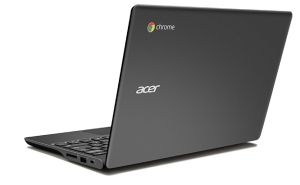
[caption id="attachment_1826" align="aligncenter" width="300"]Acer C720 Chromebook Acer C720 Chromebook[/caption]

The C720 is rated at a 7 sec boot time (I've not timed it) but it boots up pretty fast. the screen is pretty bright but does have a pretty tight viewing angle and seems fairly artefact free (but I've not put it through its paces yet). The Chiclet Keyboard is small due to the size of the Chromebook, but it's well laid out and is fairly easy to touch type on. The keys are pretty quiet when pressed and have a nice solid feel with a decent amount of travel. Unlike a regular Keyboard there are only 10 function keys across the top (instead of having F1-F10 labels,they have icons for the functions forwards, backwards, reload, full-screen/windowed, task switcher, brightness, brightness +, mute, volume -, volume +) then the power button , the CAPS LOCK key has been replaced by a Search button & the Delete key has been removed.

[caption id="attachment_1827" align="aligncenter" width="300"]Acer C720 Chiclet Keyboard Acer C720 Chiclet Keyboard[/caption]

The Touchpad is of a comparable size to that of one on a regular Laptop or Ultrabook and having a multi-touch Touchpad is a welcome change for a Laptop under £200. the 0.9mp webcam is a bit of a let down as it's pretty grainy in low light, but will do for Skype or Google Hangouts video calls. The battery life seems decent under medium heavy workload (will have to see what it's like under a full day of use). The build quality is solid for a budget  Ultrabook even though it's mostly plastic, and will look good when used on a Train, Plain or even Coffee Shop. As a bonus you get 100GB of Google Drive Storage free for 2 year, 60 Days of Google Play Music  All Access & 12 free Gogo in-air internet passes.

Roland

Next

Google+

Advertisement

BBC News - Sheffield & South Yorkshire