Saturday, 10 May 2014

New App Launcher Position Coming To Chrome OS

google-chromebook-logo

Google are experimenting with having the Chrome OS App Launcher in the middle of the Desktop compared to the normal Desktop OS position of in the lower left hand side of the Desktop, at present the new App Launcher position is hidden behind a Chrome flag.

[caption id="attachment_2137" align="aligncenter" width="300"]The current position of the Chrome OS App Launcher The current position of the Chrome OS App Launcher[/caption]

In my mind the new position of the App Launcher in the middle of the Desktop is more suited to touchscreen Chromebooks than to none touchscreen Chromebooks. This new middle of the Desktop position could also mean that Google are toying with the idea of removing the App Launcher from the shelf and turning the Search key into a Chrome Key, since the Search key also opens the App Launcher, or Google are toying with the idea of an Arm based Chrometab and an intel based Chrometab Pro.

Screenshot 2014-05-10 at 15.54.38

I prefer the traditional position of the App Launcher being positioned in on the lower left hand side of the Desktop & hope that once it’s implemented the Chrome flag stays to allow it to be put back to where it currently is or they add an option to change it back in Settings.


Now over to you the reader do you prefer the App Launcher in it’s current position or does the new position sound better?

 Roland

Google+

Wednesday, 7 May 2014

USB 3.0 2.5" HDD/SSD Enclosure Review

USB 3.0 HDD enclosure


My USB 3.0 HDD enclosure came to-day so here is my promised review.

The enclosure is mad of a piece of gloss black plastic while the frame that holds the SATA to USB 3.0 interface along with the HDD is made from matt black plastic. The whole enclosure fits together with plastic clips that snap the enclosure cover to the HDD holder, making for a rather neat looking screw free finish.

When copying the same .mp4 HD video file as I used in my Samsung SD Card review to the internal SSD of my Chromebook it was maybe a little slower than from SD Card to internal SSD and copying back to the HDD was considerably slower than from internal SSD to SD Card.

The bottle neck in writing to the HDD is more than likely due to the fact that I'm using a HDD that came in my Windows Laptop that I've had since 2010 until I upgraded the HDD in the Laptop to a 1TB HDD. I'll probably upgrade the USB HDD for an SSD at some point in the future so as not to lose any data.

The enclosure is so much thinner than my old one that it fits into the front pocket of my Laptop bag without looking too bulky.

Roland

Google+

Tuesday, 6 May 2014

Samsung 32GB Class 10 SD HC Memory Card Review

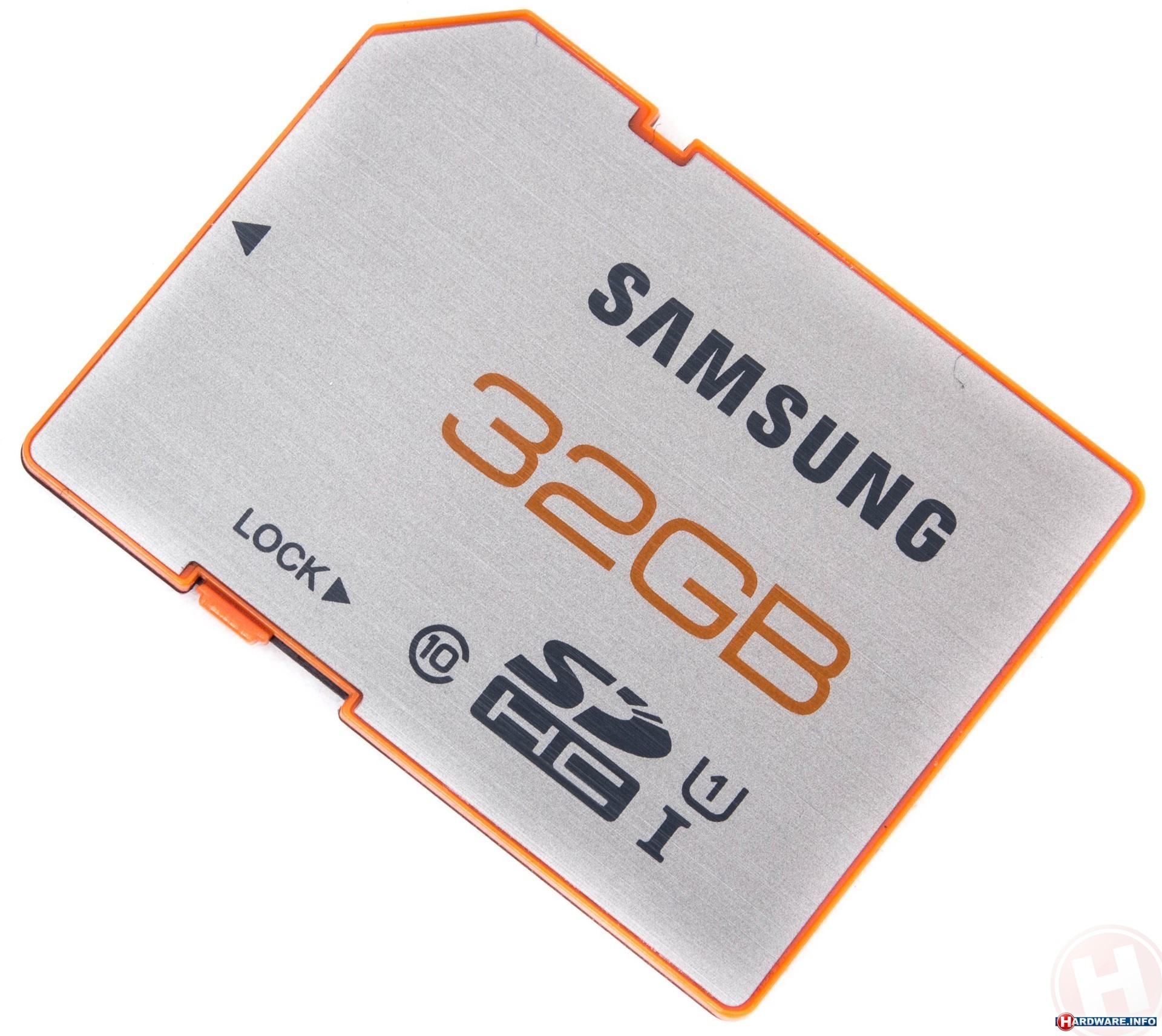
samsung_sdhc_plus_uhsi_32gb


The 32GB Samsung SD Card that I ordered last Thursday came in the post today like it was estimated to on eBay, so here is my promised review.

The one that I ordered has a black back casing where the contacts are and an Orange top and Lock switch with a Silver label on the Orange top, and since it's going to spend most of its time in my Acer C720 Chromebook which only has a shallow SD Card Slot that just allows the front of the SD Card where the contacts are to fit in with enough of the card inserted to hold it in firmly I wanted an SD Card that looked the part with my Chromebook and this card fits the bill nicely as the Orange band that s visible and the silver label go nicely with the graphite look of the C720 and the Orange case that I've got on it.

Transfer speeds from the internal SSD in the Chromebook to the Samsung SD Card are snappy but I've only tried with a small Calendar.ics file, but when copying and pasting a HD Video to the SD card from a 2.5" SATA HDD in a  USB 2.0 enclosure it took a little longer, but that's probably down to using a USB 2.0 HDD instead of a USB 3.0 HDD, but when I get my USB 3.0 HDD enclosure I'll be able to see as I'll do the same transfer test in the review. Playing back HD video is smooth and problem free, due to it being a Class 10 U1 I rated SD Card.

The only time that I've put this memory Card in my Windows Laptop was when it came so I could re-format it to give it a volume name of my choice instead of the default sd card name in Chrome OS.

[caption id="attachment_2125" align="aligncenter" width="300"]My Chrome OS File Manager showing my SD Card with the volume name Chrome SSD My Chrome OS File Manager showing my SD Card with the volume name Chrome SSD[/caption]

This SD Card was a bargain for a genuine Samsung SD Card as most high-capacity SD Cards are usually fake that are sold on eBay.

I'll of course do a follow-up review after I've used the Card for a few weeks. Also stay tuned for my USB 3.0 HDD enclosure review coming soon.

Roland

Google+

Sunday, 4 May 2014

What's On My Chromebook Shelf Right Now (May 2014)

IMG_0180


THE MOST USED APPS ON MY CHROMEBOOK, AND


WHY THEY'RE THERE


I realize that its only been a few weeks since I last did a What's on my Chromebook shelf right now post but there has been a few minor changes to my shelf setup.

While my iPhone and Google Nexus 7 Tablet are mainly used for leisure, my Chromebook is used mostly for work, I spend I've most of my day, it's what I use to update this blog and work on various other projects. So I thought I'd do a post in the style of the what's on my Mac Dock and why, but for Chromebooks, so here's what's on my Chromebook Shelf and why. First off we'll cover some of the stock Chrome apps, and there are a few. The first is Chrome as it's permanently placed on the Shelf by default, Files as it's easier than having to go through the App Drawer to find it, finally I've got the Wallpaper Picker as it's convenient for quickly changing my Desktop Wallpaper.

Now onto the rest of my Apps.

  • Dashboard. I use Dashboard as it adds a Mac OS X style Dashboard to Chrome OS. I've removed Dashboard as it's now stopped working.

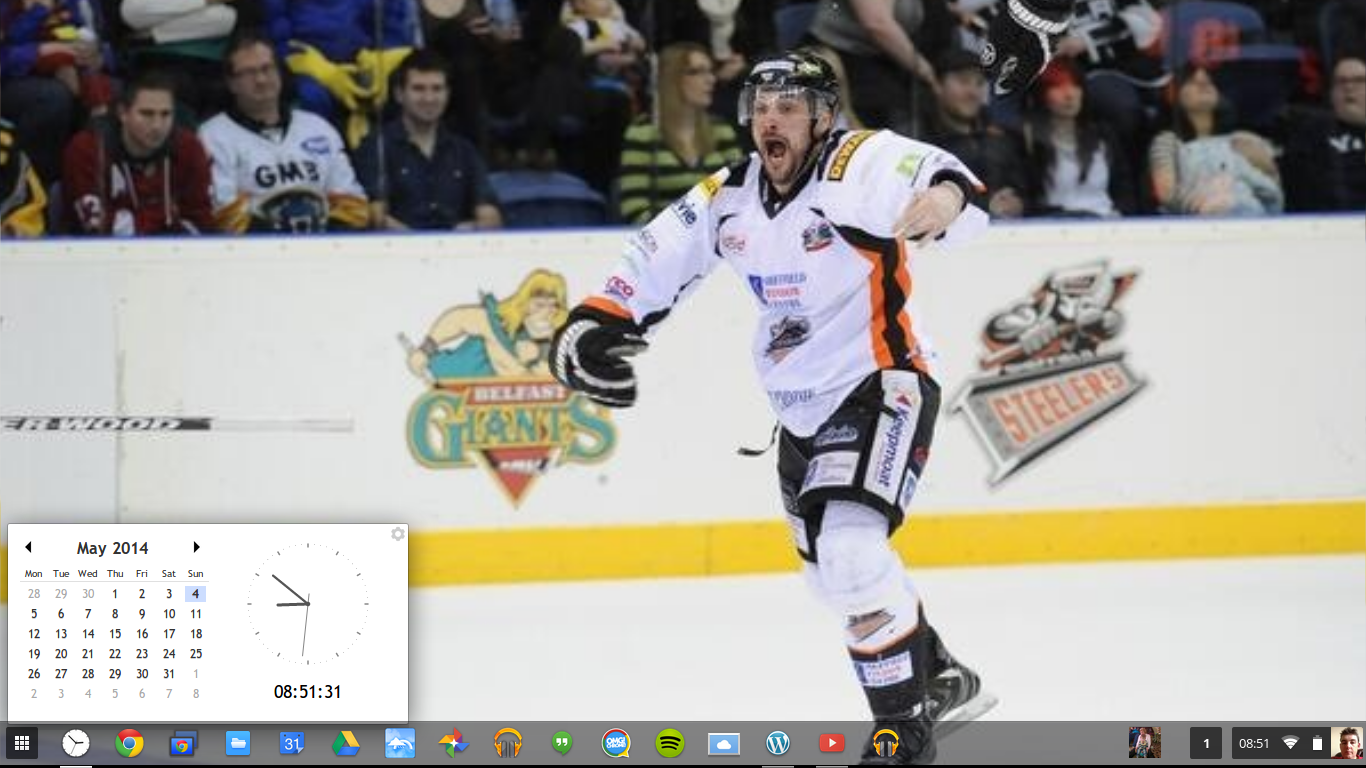
  • Clock Calendar. I've replaced Dashboard with Clock Calendar as Dashboard has stopped working, and Clock Calendar adds a nice convenient Month view Calendar and Clock that can be used like a widget.Screenshot 2014-05-04 at 08.51.31

  • Google Calendar. I Use Google Calendar on a daily basis, not always to add events. So it's essential to have Calendar in easy reach.

  • Google Drive. It's essential for me to always have quick access to all of my work with more advanced features than using Files.

  • Full Screen Weather. I use Full Screen Weather, because it's always nice to keep an eye on the weather.

  • Google+ Photos. I use Google+ Photos as it's a nice simple way to view all my photos that are backed up on Google+& even shared to Google+.

  • Google Play Music. I use Play Music as a lot of my music is already stored on Play Music, and having it on the Shelf makes it easy to use when I want to listen to anything.

  • Hangouts call. Hardly ever used, but it's still there if I need it.

  • OMG Chrome. As it's nice to keep an eye on the latest Chrome & Chrome OS news.

  • Spotify.  I like using Spotify & it's nice to be able to use Spotify from the Shelf.

  • WeVideo. I've added WeVideo to my shelf as I'm planning on doing a tour of my Office/Desk at some point during the next week and thought that it would be an ideal time to experiment with WeVideo, so it's gained a place on my shelf for at least the next few weeks.

  • WordPress.com. Since my blog is hosted on WordPress.com it makes sense to keep the WordPress.com app on the Shelf.

  • YouTube. I watch YouTube videos nearly every day, so keeping the YouTube app on the Shelf makes sense.

  • Google Play Music Mini Player. Having the Google Play Music Mini Player on the Shelf means that I can get access to some of the Google Play Music features without having to go into the Google Play Music app, would be nice to be able to use the Google Play Music Mini Player while the Google Play Music app is closed though.


That's everything on my Chromebook Shelf. I've got loads of other apps on my Chromebook, but the list I've provided in this post are the select few that I use enough to allow to grace a spot on my Shelf. That's enough about my Chromebook, what about you? Be sure to share your Chrome Shelf setups in the Comments.

Roland

Google+

Friday, 2 May 2014

Living In The Cloud 4 Months 6 Days Review

google-chromebook-logo

It's been 4 months 6 days since I started living in the Cloud. When I started it was a month-long experiment for a blog series that I decided to write, and I was just living in Chrome on Windows 7, this worked fine but there was still the temptation to use Windows 7. I soon moved over to the open source Chromium OS, and with the temptation to use Windows now gone I was able to throw my life 100% into the Cloud for the rest of the month-long experiment.

When the month was up I then replaced my Laptop with an official Chromebook and on the 14th of January this year  and I'm now entrusting my life to the Cloud, but for the price of entrusting my life to the Cloud I've got an easy to use Laptop that requires no maintenance where I can just simply get on with the task at hand.

4 month conclusion


After nearly 4 months and 1 week of living in the Cloud I'm more productive as I don't have to wait for my Laptop to boot up and all the startup programs to start before I can use it, which means I can start being productive as soon as I take my Chromebook out of my bag, and the long battery life means that I can be productive all day, and if I don't use my Chromebook all day I can use it for several days between charges. With my Windows Laptop I was lucky if a could get an hours worth of use out of it even after changing the battery for one with a higher capacity.


My Chromebook is light enough that I can carry it with me everywhere that I go as I went for the 11.6" Acer C720 which is a lightweight powerhouse that does everything that I do on a day-to-day basis, that was the reason for me choosing a Chromebook over a Windows Laptop or Ultrabook. My first choice was a MacBook Pro closely followed by a MacBook Air, but as they were way out of my price range I went for what is basically the new comer to the computing world.


Chromebooks are nothing like what Microsoft tries to lead everybody to believe, as now that everything is connected to the Internet even Windows and Mac Laptops can't do most things without an Internet connection. Sure you can use Office programs Offline along with other tasks, but for the day-to-day things like browsing the Internet or sending and receiving emails can't be done without an Internet connection. As Chrome OS matures more and more things can be done Offline as Google Drive has the ability to view documents Offline, but at present has limited Offline creation options, as you can only currently create and edit documents Offline but once you've named a document you're unable to rename it until you're back Online.


I'll probably do another review post in 4 months time.


Roland

Google+

Wednesday, 30 April 2014

Chrome OS In The Future

google-chromebook-logo With Samsung launching the Chromebook 2 in 11.6" and 13" varieties and the Education focused Chromebooks from new Chrome OS OEM's Dell and Lenovo, what's the future got in store for Chrome OS? The  Lenovo ThinkPad 11e yoga looks the most interesting of the new entrants to the Chromebook market, and could be the Chromebook that kickstarts the idea of having a Chrome OS Tablet in the future. We've already got Chromebooks, Chromeboxes & LG launching an iMac styled Chromebase then a Chrometab seems to be the obvious progression in the evolution of Chrome OS.

What I'd like to See in Chrome os in the future


With Google hinting at introducing an Easy Unlock feature, what would I like to see in the future of Chrome OS?


I'd like to see a way to integrate OneDrive, Box & Dropbox into the files app and improvements to the Offline capabilities of Google Drive.


Yesterday April 29 Acer announced an as yet unnamed Chromebook that will be powered by an intel Core i3-4005U running at 1.7GHZ and boast intel HD4400 grapics. as yet there is no word on a release date, price, amount of RAM or storage size, source OMG Chrome.


Roland


Google+

Monday, 28 April 2014

Other External Hardware That Works in Chrome OS

google-chromebook-logo


I was going through some of the external hardware that I've got lying around in my Windows Laptop bag to see what is compatible with Chrome OS and what isn't compatible with Chrome OS.

Generic USB 2.0 webcam


I originally got this Webcam as an experiment using face tracking software for gaming which has sat in my Laptop bag ever since. So I decided to try it in my Chromebook, it works flawlessly in Hangouts call and is so much clearer than the built-in one and the 6 LED's get rid of any artifacts created by low light. Unfortunately the Chrome OS Camera app doesn't support the use of external Webcams, but the LED's will help get rid of low light artifacts.

I don't really use the built-in Webcam that much, so I won't be using my external Webcam all that much, but it might come in handy if I attempt to do some Unboxing videos on YouTube.

Generic Wireless USB Mouse


I originally got this mouse because I'm not a fan of the tiny portable wired Mouse that came with the Laptop bag. For the small amount that I paid for it on eBay it's an excellent Mouse. It works perfectly with Chrome OS, but yet again it'll not get much use as I really like the gesture control of the multi-touch trackpad.


If I could get hold of an Apple cheaply on eBay I'd give it a go with my Chromebook as I'd like to re-setup a little office space in the Livingroom to get a comfortable work area than having my desk pretty much being my knee and the spare seat on the sofa.


Conclusion


Chrome OS is really good at supporting external hardware no matter how cheap or generic it is.

Planned Projects


I'm hoping to get a replacement HDD Caddy for my 2.5" external HDD, as I've had my current one since about 2009/10 and it's seen better days. I'm also considering upgrading the 16GB internal SSD by adding a 32GB SD card, whether I keep the SD card in the SD slot permanently or keep inserting it every time I take it out to use it I've not decided.

I'm hoping to do these over the weekend or in the week as I've got to order them on eBay and await delivery. I'll not be doing any Articles on the's upgrades but I might do a review of the SD Card and the HDD Caddy.

Roland

Google+

Advertisement

BBC News - Sheffield & South Yorkshire