Saturday, 26 April 2014

Targus Slim Netbook Case Review

Logo-Targus-700

I was looking for a bag for my Acer C720 Chromebook as the Targus Laptop Messenger bag that I'd previously been using was starting to get uncomfortable to as it's a heavy bag when it's empty.

How I came across the Targus Slim Netbook Case was purely by accident while searching eBay for Chromebook Cases and it popped up on the listings, so for the price I decided to buy it & yesterday it was delivered. So after over a days use here's my review.

Review


The Targus Slim Netbook case states on its information tag that it's for Netbooks up to 11.6", but it comfortably fits my Acer C720 even when its got its iPearl cover on it.


[caption id="attachment_2092" align="aligncenter" width="225"]Targus Slim Netbook Case information tag showing dimensions Targus Slim Netbook Case information tag showing dimensions[/caption]

The Case is a good size and is very well made, it's got the same quality feel about it as my old Targus Laptop Messenger Bag the only difference is that it's made from lightweight material.

[caption id="attachment_2094" align="aligncenter" width="300"]Targus Slim Netbook Case outside Targus Slim Netbook Case outside[/caption]

The case looks more like a Netbook Sleeve than a Netbook Case as it doesn't have a full Zip main compartment, but the handles and the front zip pocket are a give away that it's a Case and not a Sleeve, it's also got a rear baggage trolley loop with Velcro fastening.

The main compartment has a double zip fastening with an elasticated Velcro strap to stop your Netbook or Chromebook from slipping out. The main compartment is spacious with more than enough space for an 11.6" laptop.

[caption id="attachment_2095" align="aligncenter" width="300"]Main compartment with Velcro fastening closed Main compartment with Velcro fastening closed[/caption]

The front compartment has room for 3 pens,a small expanding pocket with a Velcro fastening, a big pocket with 2 medium-sized pocket in front, another big pocket with 4 pockets the size of USB flash drives on the front, as well as a spacious pocket to hold a Power supply, the only down side is that a UK mains lead is a bit too bulky to fit in unless you're using the case for an 11" MacBook Air.

[caption id="attachment_2096" align="aligncenter" width="300"]The front organizer Accessory pocket The front organizer Accessory pocket[/caption]

The case also comes with an extendable shoulder strap that makes it easy to carry your laptop around without the risk of dropping it.

[caption id="attachment_2097" align="aligncenter" width="300"]Extendible shoulder strap extendable shoulder strap[/caption]

The case is so spacious that I can get my Asus Google Nexus 7 Tablet as well as my Acer C720, power supply, headphones and a few other accessories including a Chrome OS Recovery USB Flash Drive.

[caption id="attachment_2098" align="aligncenter" width="300"]The contents of my Targus Slim Netbook Case The contents of my Targus Slim Netbook Case[/caption]

Conclusion


The Targus Slim Netbook Case is a quality case with plenty of space for carrying your 11.6" Chromebook along with all your essential accessories, keeping the Chromebook power supply with you is probably not necessary, but I keep it in so I can find it when I need it as well as it's always ready for when I go away for a few days and need to charge. The only chargers I can't carry with me are my phone and tablet ones, but there is room for a USB to iPhone Dock Connector cable and a USB to Micro USB cable.

I'd recommend this case for anyone who has an 11" Chromebook  as there is plenty of space to keep everything that you need together.


Roland

Google+

Friday, 25 April 2014

New Easy Unlock Feature Coming Soon To Chrome OS

google-chromebook-logo

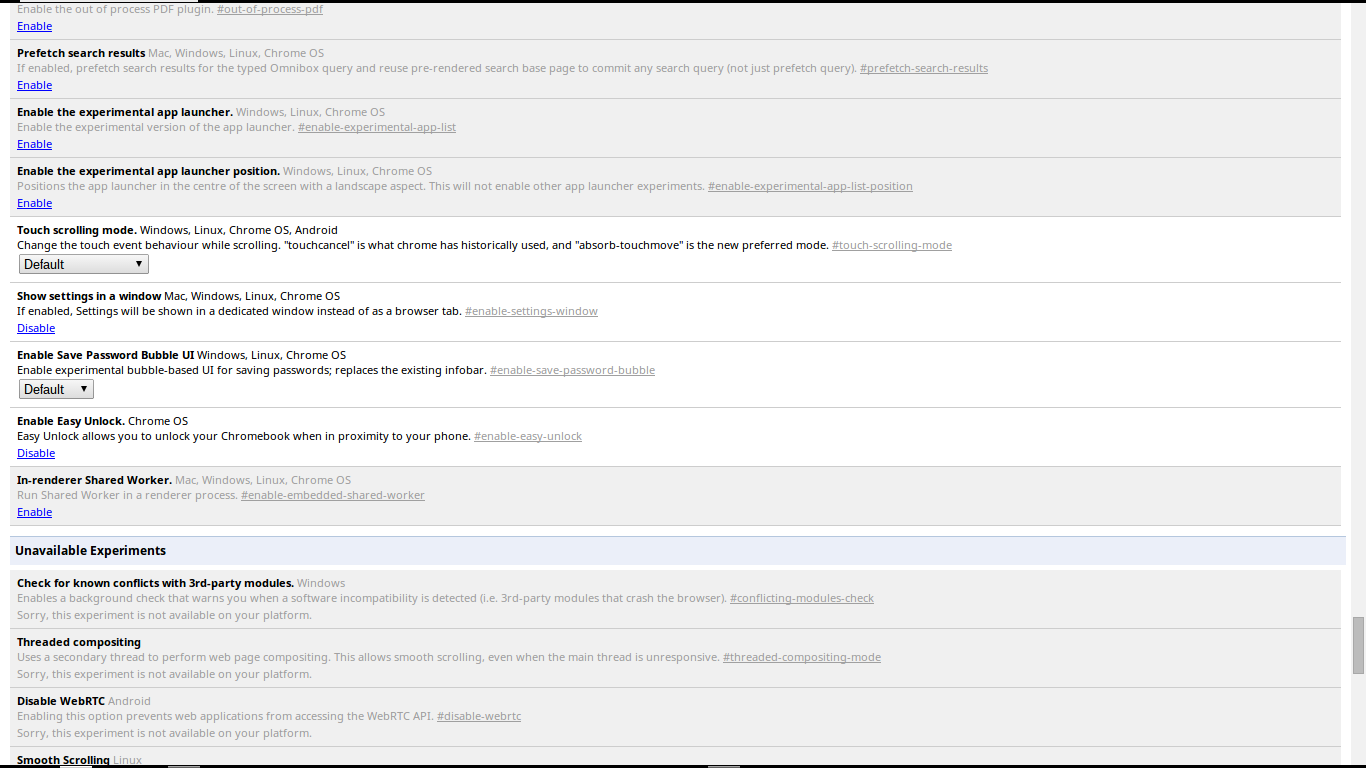
In the latest Chrome OS Development release there is a new feature hidden under a Chrome Flag, this feature is called Easy Unlock.

[caption id="attachment_2087" align="aligncenter" width="300"]Easy Unlock Chrome Flag Easy Unlock Chrome Flag[/caption]

[caption id="attachment_2085" align="aligncenter" width="300"]Easy Unlock option in Settings. Easy Unlock option in Settings.[/caption]

Once enabled Easy Unlock Setup can be found in Settings > Show Advanced Settings, once you select Setup Easy Unlock you get a Setup Wizard.

[caption id="attachment_2086" align="aligncenter" width="300"]Easy Unlock Setup Wizard Easy Unlock Setup Wizard[/caption]

The Easy Unlock Setup Wizard currently doesn't work, but it does point towards how it will work as when you select Find your phone it switches on the Bluetooth Radio in your Chromebook.

Conclusion


The Chrome OS Easy Unlock reminds me of a tiny hardware device that I saw in my local PC World years ago where you plugged a USB Dongle into your Windows Computer or Laptop and a puck was used to lock or unlock your Computer depending on if the puck was in rang of the USB Dongle in your Computer.

At present it's impossible to tell if Easy Unlock will only unlock your Chromebook or if it'll lock your Chromebook as well. If it only unlocks when it goes live it'll be nice if Google improve Easy Unlock to lock as well.

Roland

Google+

Tuesday, 22 April 2014

What's On My Chromebook Shelf Right Now

IMG_0180

THE MOST USED APPS ON MY CHROMEBOOK, AND


WHY THEY'RE THERE


While my iPhone and Google Nexus 7 Tablet are mainly used for leisure, my Chromebook is used mostly for work, I spend most of my day, it's what I use to update this blog and work on various other projects. So I thought I'd do a post in the style of the what's on my Mac Dock and why, but for Chromebooks, so here's what's on my Chromebook Shelf and why. First off we'll cover some of the stock Chrome apps, and there are a few. The first is Chrome as it's permanently placed on the Shelf by default, Files as it's easier than having to go through the App Drawer to find it, finally I've got the Wallpaper Picker as it's convenient for quickly changing my Desktop Wallpaper.

Now onto the rest of my Apps.


  • Dashboard. I use Dashboard as it adds a Mac OS X style Dashboard to Chrome OS.

  • Google Calendar. I Use Google Calendar on a daily basis, not always to add events. So it's essential to have Calendar in easy reach.

  • Google Drive. It's essential for me to always have quick access to all of my work with more advanced features than using Files.

  • Full Screen Weather. I use Full Screen Weather, because it's always nice to keep an eye on the weather.

  • Google+ Photos. I use Google+ Photos as it's a nice simple way to view all my photos that are backed up on Google+& even shared to Google+.

  • Google Play Music. I use Play Music as a lot of my music is already stored on Play Music, and having it on the Shelf makes it easy to use when I want to listen to anything.

  • Hangouts call. Hardly ever used, but it's still there if I need it.

  • OMG Chrome. As it's nice to keep an eye on the latest Chrome & Chrome OS news.

  • Spotify.  I like using Spotify & it's nice to be able to use Spotify from the Shelf.

  • WordPress.com. Since my blog is hosted on WordPress.com it makes sense to keep the WordPress.com app on the Shelf.

  • YouTube. I watch YouTube videos nearly every day, so keeping the YouTube app on the Shelf makes sense.

  • Google Play Music Mini Player. Having the Google Play Music Mini Player on the Shelf means that I can get access to some of the Google Play Music features without having to go into the Google Play Music app, would be nice to be able to use the Google Play Music Mini Player while the Google Play Music app is closed though.


That's everything on my Chromebook Shelf. I've got loads of other apps on my Chromebook, but the list I've provided in this post are the select few that I use enough to allow to grace a spot on my Shelf. That's enough about my Chromebook, what about you? Be sure to share your Chrome Shelf setups in the Comments.

Roland

Google+

Monday, 21 April 2014

WeVideo - Video Editor & Review

VID


WeVideo - Video Editor & Maker is similar to the old Windows Live Movie Maker, it has a simple UI that anyone can find their way around.

[caption id="attachment_2069" align="aligncenter" width="300"]WeVideo Timeline & UI WeVideo Timeline & UI[/caption]


You can upload your finished videos to Google Drive, instaGram, flicker, facebook, Dropbox,  Picasa, box & SkyDrive OneDrive. YouTube uploading is notably missing, so if you want to upload to YouTube you'll have to download your video from Google Drive & then upload to YouTube. The long-winded YouTube uploading isn't ideal, but it gives you more flexibility when it comes to uploading to YouTube.

I've not had much of a play with WeVideo yet but it works extremely well on my Acer C720 Chromebook, but then again the short video that I recorded using WeVideo didn't give my Chromebook that much of a workout.

Conclusion


The WeVideo - Video Editor & Maker is probably the best Cloud Video Editor on the Chrome Store, as it's got the highest Star rating out of all the Video Editors on in the Chrome Store.

I'll do a follow-up post at some point in the future as I'll need to have a good play with WeVideo before I can post a more in-depth review.

Roland

Google+

Thursday, 17 April 2014

Programming In Chrome OS Choices

Coding


If you're a Programmer and use Chrome OS you've got a choice of applications that you can use.

Text


Text is a simple text editor, it has line numbering and syntax highlighting. Text is ideal for anyone who prefers to Code in a minimalistic environment .

With Text there is no Debugging menu or on the fly Compiling to test your Code.

Text can also be used as a simple notepad as well.

Nitrous.IO


Nitrous.IO is a basic IDE for Ruby On Rails, node.js, Python & GO along with C/C++. Nitrous.IO uses a subscription model if you want to create more programs than what you get with a free account.

Nitrous.IO isn't one of the best designed IDE's around as it's a very basic IDE.

Neutron Drive


Neutron Drive is as fully featured IDE that allows you to program in a large range of languages, and is ideal for any type of project that you might want to create.


best of all Neutron Drive is free, but as of writing I'm unable to find Neutron Drive in the Chrome Store.


Conclusion


Neutron Drive is probably the best programming app in the Chrome web Store, Neutron Drive seems to be hidden if you do a search from the Chrome Store homepage but a link is available from the Neutron Drive website, here is the neutron Drive Chrome Store listing.

There are other programming environments available on Chrome /Chrome OS, but this is just a small selection of what I've ether had installed in the past or currently got installed.

Roland

Google+

Wednesday, 16 April 2014

Microsoft LifeChat LX-3000 And Chrome OS

google-chromebook-logo

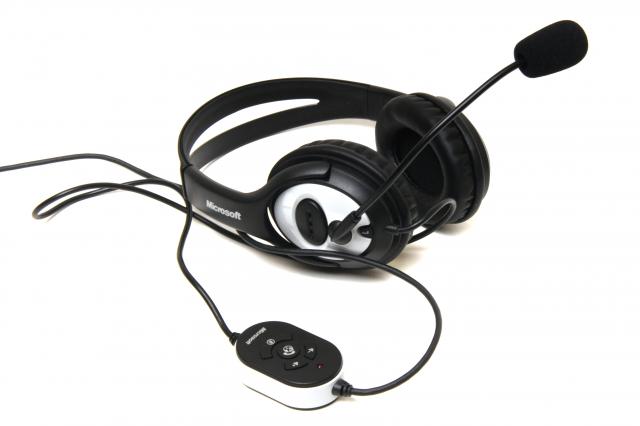
When I was using Chromium OS on my Toshiba Satellite C660-15R I was unable to use my Microsoft LifeChat LX-3000 USB headset as it wasn't detected by the OS.

Microsoft LifeChat LX-3000

Today I tried using the same headset on my Acer C720 Chromebook running Chrome OS 35.0.1916.27 dev and my Microsoft LifeChat LX-3000 gets detected by the OS and the headphones work perfectly fine, but I've not had chance to check the Microphone side of the headset yet.

The microphone side of the Microsoft LifeChat LX-3000 gets detected by Chrome OS so I assume that it will work with Chrome OS, I'll update at a later date when I've had chance to try it out properly.

On a side note my Bluetooth headset that I got for my mobile phone works with Chrome OS but only as headphones as Chrome OS doesn't detect that it has a microphone built-in and instead uses the Chromebooks internal speaker.

Conclusion


The sound coming from the Microsoft LifeChat LX-3000's headphones is comparable to that of the internal speakers of the Acer C720 Chromebook, but the Bass coming from the Microsoft LifeChat LX-3000's headphones could be slightly more noticeable compared the Acer's internal speakers.

The Microsoft LifeChat LX-3000 make the perfect headphones for anyone who listens to music via Spotify or Google Play Music & for watching videos on YouTube, Netflix, Google Play Movies & TV or any of the other video streaming services that are available.

If the microphone side of the Microsoft LifeChat LX-3000 works in Chrome OS then it's the perfect headset for YouTube Producers or anyone that uses Chrome OS for creating videos and needs a headset for monitoring audio as well as adding voice overs, & for anyone that uses Google Hangouts and wants to use something better than the internal speakers and microphone.

Roland

Google+

Tuesday, 15 April 2014

Microsoft Launch Office Web Applications Launchers for Chrome & Chrome OS

MS-Office-2013

Microsoft have now launched their free Office web apps as Chrome & Chrome OS app launchers. Joining the existing Chrome & Chrome OS app launchers for OneDrive & Outlook.com launchers for Word, Excel, PowerPoint & OneNote, all but Excel are available by searching for the relevant app in the Chrome web Store, for anyone who wants the PowerPoint launcher here's the Chrome web Store listing (courtesy of OMG Chrome).

The Microsoft Office web apps work like Google Docs, Google Slides & Google Sheets by auto saving your document while you work, the only difference is that the Microsoft Office web apps look exactly like the Microsoft Office 356 Suite with exactly the same UI as the full Office 365 Suite, the only difference is that the File Menu is slimmed down slightly with the lack of  a manual Save & Save As.

The Office 365 web apps look more professional compared to the Google Office suite due to the more complex UI, but they both do the same tasks with ease even though the Google Office suite offers the ability to work Offline where as the Office web apps are purely online only.

Google was the first to launch Office in the cloud when it Launched Google Docs (now Google Drive), closely followed by Microsoft with office web apps. Naturally Google Drive was the only installable web apps on Chrome OS although Microsoft Office web apps was available through Live.com and now Outlook.com websites, when RollApp recently launched it gave Chrome OS users the ability to use the full & not modified for Cloud Computing LibreOffice suite (with installable web app launchers), now Microsoft join in late to the party bringing their 3 web apps to Chrome OS as installable web app Launchers, Word, Excel, PowerPoint & OneNote join the already available Outlook.com & OneDrive web app launchers.

Can Microsoft entice none Office 365 subscribers to Office Online or will the small amount of free storage on OneDrive compared to the 15GB of free storage space on Google Drive & the offer of 100GB of free Google Drive storage on top of your standard free storage for 2 years for anyone who buys a Chrome OS device be enough to keep Chrome OS users with Google Drive.

I've got  Google Drive, LibreOffice on RollApp & the Microsoft Office web apps installed on my Chromebook, but other than giving LibreOffice via RollApp a go for articles on the Blog I tend to use Google Drive exclusively (probably due to the extra 100GB of free storage space for 2 years & it's integration with the Chrome OS Files App), but I'll probably give the Office web apps a try as I used to use them before I started using Google Drive (Docs as it was known as at the time).

Conclusion


 Microsoft must really see Google Drive as serious competition to launch Office web app launchers for Chrome/Chrome OS, but for Chrome OS users it brings more choice to the table.


Roland


Google+

Advertisement

BBC News - Sheffield & South Yorkshire