Monday, 24 November 2014

2.4 GHZ Wireless Mini Keyboard & Mouse Review


I got the 2.4 GHZ Wireless Mini Keyboard to make using my Chromebook at my desk easier as I can use the Keyboard and Mouse on the Keyboard tray of the desk instead of using the Chromebooks own Keyboard & Trackpad which is uncomfortable due to it being on a Laptop Riser that I'll review next.

The Keyboard is a standard island style Keyboard that is used on most modern Laptops including Chromebooks and Apple desktops. The Keyboard is a standard Windows layout with all the extra keys that you would expect from a Windows Keyboard.

For use with Chrome OS all of the Keys work as expected, the Caps Lock Key works as Caps Lock & the Windows Key works as the Chrome OS Search Key, the Delete Key works as Delete. The only Keys that don't work as they should are the Media Control Keys that are under the Fn Key on the F1-10 Keys.

To use the F1-10 Keys you really need to print off the Keyboard Layout by Googling for it and printing it out. The Keys are really solid and have more of a Mechanical feel about them than the what you get from Island style Keyboards. The supplied Keyboard protector does the job well and adds just the right amout off flex that using the Keyboard for an extended amount of time won't hurt your fingers.

The Mouse is of a mini variety and is nothing special as it's just a run of the mill optical mouse with left & right buttons and a scroll wheel that also acts as a third mouse button. Compared to the Wireless mouse that I was using previously it feels a little on the small side, but I'll have to try using the Keyboard on it's own with my other Wireless mouse even though it means having to give up a USB Port for another 2.4 GHZ dongle.

The 2.4 GHZ dongle for the kit sits in the bottom of the mouse for safe keeping if you decide to take them on the road with you (also this is where you will find the dongle when you take the kit out of the box. The Keyboard uses two AAA batteries while the mouse uses one AAA battery,

In the box you'll also find a little instruction leaflet as well as the Keyboard, in the kit that I got there were no included batteries but other sellers may include batteries.

For a link to the kit I got please see my Desk Setup November 2014 Article.

Roland

Sunday, 23 November 2014

What’s On My Chromebook Shelf Right Now (November 2014)


THE MOST USED APPS ON MY CHROMEBOOK, AND

WHY THEY’RE THERE


This is my latest Chrome OS shelf line up that I’ll probably stick with for at least the near future. While my iPhone and Google Nexus 7 Tablet are mainly used for leisure, my Chromebook is used mostly for work, I spend I’ve most of my day, it’s what I use to update this blog and work on various other projects. So I thought I’d do a post in the style of the what’s on my Mac Dock and why, but for Chromebooks, so here’s what’s on my Chromebook Shelf and why. First off we’ll cover some of the stock Chrome apps, and there are a few. The first is Chrome as it’s permanently placed on the Shelf by default, Files as it’s easier than having to go through the App Drawer to find it, finally I've got the Wallpaper Picker as it’s convenient for quickly changing my Desktop Wallpaper. Now onto the rest of my Apps.
  • Blogger. Since moving my blog over to Blogger from Wordpress I've started using the Blogger Chrome web app to work on my blog.
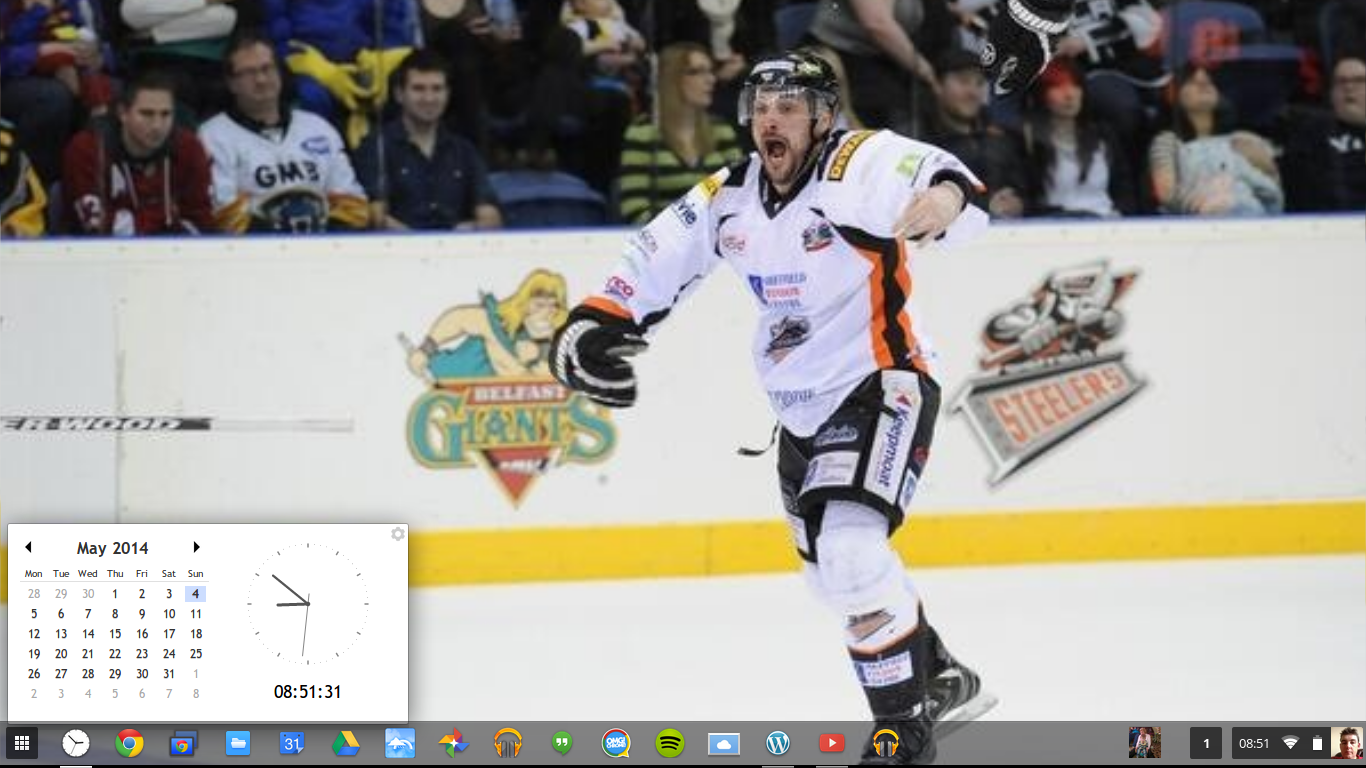
  • Clock Calendar.  Clock Calendar adds a nice convenient Month view Calendar and Clock that can be used like a widget.
Screenshot 2014-05-04 at 08.51.31

    My Home Office Set-up November 2014


    My Home Office setup isn't like the video tours that you see on YouTube, it used to similar at one time. It’s now a lot more modest and minimalistic, but it works well for me.   So here’s my text and picture tour of my Home Office as it didn't seem worth while doing a YouTube video. The storage part of my Home Office is an old Computer desk that houses a Box of Printer Paper, a Shredder, a Box of Envelopes and a brown box that has some Computer stuff on the bottom shelf, the Keyboard drawer has an old Microsoft Multimedia Keyboard while the top shelf has a Printer Organizer with mostly odd bits of scrap paper and the charger for my Asus Google Nexus 7, Bluetooth headphones and my Microsoft LifeChat LX-3000 USB Headset & on top of it I've got my Kodak esp 1.2 AIO Printer.

    Friday, 21 November 2014

    Inbox By Gmail Review


    After using Inbox by Gmail on and off for a few weeks I thought that it was about time that I wrote a review of it.

    Unlike the Gmail interface the Inbox interface is very minimalistic and takes a bit of getting used to as the tabbed category interface with the always on show sidebar has been replaced by a slide out sidebar that us the Hot dog menu (three stacked lines) that was first introduced in chrome to hide and show the sidebar along with a re-design of the category tabs.

    Saturday, 18 October 2014

    Blogger iOS App Rant


    After downloading the Blogger iOS App onto my iPhone 4S to allow me to write Buzz Nations Articles while I've not got access to my Laptop I felt I had to vent my dismay the UI and Keyboard still the pre-iOS 7 style, and with iOS 8 out I'm surprised that one of Googles own Apps hasn't been updated for iOS 7+.

    Thursday, 11 September 2014

    Skullcandy UpRock Review


    After using my Skull Candy UpRock headphones for a while now I thought it was about time that I wrote my full and in-depth review.

    The sound that comes out of the UpRocks is perfect for any type of music as they're not bass heavy & they're not too light on bass so they're perfect for listening to spoken content such as Podcasts along with watching YouTube videos & even gaming.

    Wednesday, 10 September 2014

    MultCloud Review


    After using MultCloud for quite some time since I wrote my initial impressions Article, I thought it was about time that I wrote my review of MultCloud. So read on for my full review and verdict

    Advertisement

    BBC News - Sheffield & South Yorkshire