

Showing posts with label Blogs/Blogging. Show all posts
Showing posts with label Blogs/Blogging. Show all posts
Saturday, 28 March 2015
How I Use My Chromebook

Saturday, 18 October 2014
Blogger iOS App Rant

After downloading the Blogger iOS App onto my iPhone 4S to allow me to write Buzz Nations Articles while I've not got access to my Laptop I felt I had to vent my dismay the UI and Keyboard still the pre-iOS 7 style, and with iOS 8 out I'm surprised that one of Googles own Apps hasn't been updated for iOS 7+.
Tuesday, 5 August 2014
WordPress Post Dashboard Clutter

 |
| A sample page from my WordPress.com Posts Dashboard |
Sunday, 15 June 2014
Blogging For Begginers
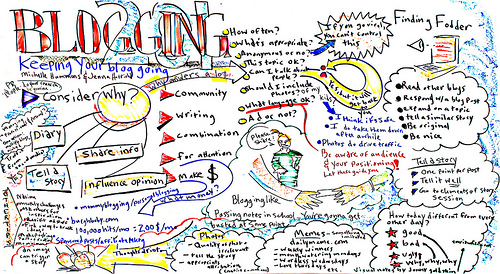
So you've decided to start a Blog, where do you start?
There are three main things that you need to consider carefully before you start your Blog, you can find them listed bellow with some tips.- Decide on which Blogging service to use: You've got a choice of two free hosted blogging services available in the form of WordPress & Blogger and two self-hosted services in the form of WordPress and Blog engine. If you want a simple life with your blog that doesn't really require any maintenance then I'd go for a WordPress or Blogger hosted blog. WordPress offers a large selection of Add-ons that you can purchase that even includes a custom domain name for your blog that gets rid of the .wordpress.com part of your Blogs address, where as Blogger only offers a custom domain name (a custom domain name changes say blogname.wordpress.com to say blogname.com) a custom domain makes your blog look more professional. Both services allow you to either buy a custom domain through them or have a domain name that you already own mapped to your blog (I'd personally go for buying direct from your blog provider over mapping an existing domain name as all the configuration is done for you and you don't have to do it yourself.
Tuesday, 27 May 2014
Spam Comments: What's The Point?

After getting a rather harsh Spam Comment accusing me of copying material for an Article that was 100% my material I approved the comment and requested the person that made the comment to cite the source for the allegedly copied material, to which I was met with no reply I've decided to write this article about Spam Comments.
this isn't the first time that I've written an Article about Spam Comments, but it's definitely the first time that I've been accused of copying material from another source be it in a legitimate Comment or a Spam Comment.
Accusing someone of copying material from another source that's 100% the Authors own work is a serious accusation to make, even if the Comment is a spam Comment as not all Blogging Platforms provide a Spam Filter like WordPress does, even a self hosted WordPress Blog ether self hosted or via a hosting Company doesn't provide Spam filtering unless the Akismet Spam filter Plugin enabled.
Friday, 3 January 2014
2013 in review
Here's my Blog's 2013 Review that I promised.
The WordPress.com stats helper monkeys prepared a 2013 annual report for this blog.

Here's an excerpt:
Click here to see the complete report.
Roland

The WordPress.com stats helper monkeys prepared a 2013 annual report for this blog.
Here's an excerpt:
A New York City subway train holds 1,200 people. This blog was viewed about 5,400 times in 2013. If it were a NYC subway train, it would take about 5 trips to carry that many people.
Click here to see the complete report.
Roland
Saturday, 5 October 2013
Spam Comments What's The Point?
Are the people behind the Spam Blog Comments that are just full of random words strung together that make no sense and full of random links stupid? Do they actually think that Blog Authors are actually going to approve these useless Comments that are
A) Don't make any sense and are full of Links.
B) Mostly off topic to the Post that they have commented on.
I can't decide if Spam Comments are by other Bloggers that haven't got as big of a following as the Blog that they Spam in hope of
A) Getting Spammed Blog down ranked by search engines due to Spam Comments.
B) Idiots that have nothing better to do with their time than leave Spam Comments on Blogs.
or Bots that just trawl the Net Spamming every single Blog there is.
But I thank god that I decided to use wordpress.com when I started Blogging as the Akismet Spam filter built into WordPress does a pretty good job of filtering out Spam Comments even though the odd one or two Spam Comments slip through the filter and every now and again I get the occasional off topic Comment.
But that still doesn't answer my question about What's the point of Spam Comments as all Spam Comments do is waste the time of Blog Authors who have to go through the Comments and delete all Spam, and that takes time away from them producing great content that people actually want to read, and it's a waste of Spam Commenter's time as none of the Spam Comments are actually going to get Approved by Blog Authors.
Rant Over
Roland
A) Don't make any sense and are full of Links.
B) Mostly off topic to the Post that they have commented on.
I can't decide if Spam Comments are by other Bloggers that haven't got as big of a following as the Blog that they Spam in hope of
A) Getting Spammed Blog down ranked by search engines due to Spam Comments.
B) Idiots that have nothing better to do with their time than leave Spam Comments on Blogs.
or Bots that just trawl the Net Spamming every single Blog there is.
But I thank god that I decided to use wordpress.com when I started Blogging as the Akismet Spam filter built into WordPress does a pretty good job of filtering out Spam Comments even though the odd one or two Spam Comments slip through the filter and every now and again I get the occasional off topic Comment.
But that still doesn't answer my question about What's the point of Spam Comments as all Spam Comments do is waste the time of Blog Authors who have to go through the Comments and delete all Spam, and that takes time away from them producing great content that people actually want to read, and it's a waste of Spam Commenter's time as none of the Spam Comments are actually going to get Approved by Blog Authors.
Rant Over
Roland
Sunday, 29 September 2013
The One Thing That I've Enjoyed While Using Blogger
The One Thing That I've Enjoyed While Using Blogger is the lack of off topic and Spammy comments, but that's probably due to the fact that I never got any comments while I was actively used Blogger due to the fact that I couldn't get a decent amount of followers & viewers.
WordPress really needs to sort out its Akismit Spam filter as it's awful at filtering out Spam from legitimate comments, as when I re-started using WordPress this morning out of 40 Comments that I'd got 3 were correctly filtered to the Spam folder and out of the 56 that were filtered to the pending folder approximately half were in correctly filtered as legitimate comments that I'd then got to sort through manually.
Rant over
Roland
WordPress really needs to sort out its Akismit Spam filter as it's awful at filtering out Spam from legitimate comments, as when I re-started using WordPress this morning out of 40 Comments that I'd got 3 were correctly filtered to the Spam folder and out of the 56 that were filtered to the pending folder approximately half were in correctly filtered as legitimate comments that I'd then got to sort through manually.
Rant over
Roland
Blogger Vs WordPress And Why I Decided To Return To WordPress
In this post I'll compare Blogger Vs WordPress And Why I Decided To Return To WordPress.
I switched my Blog from WordPress to Blogger in late 2011 to explore all the tools that Google offer for Blogs and Websites such as Analytics and AdSense, but I was unable to build up a following similar to what I had built up on here. Google then took it on themselves to block my AdSense Account stating that I'd breached the Terms & Conditions of AdSense, but never explained what I'd supposedly done to breach the AdSense Terms & Conditions. I then tried to get Google Authorship & Author Rank working which it never did properly, but I still continued to write posts until this year when I just couldn't be bothered with Blogging any more that is until this morning when I decided to dust off my WordPress Account and start again.
The main reasons that I decided to ditch Blogger and return to Wordpress are:
Admin Console
Customization
Sharing
Post Editor
Categorizing Posts
Themes
Miscellaneous
I also found that getting any form of Ranking was totally impossible most of the time with Blogger, compared to with WordPress & no matter how much effort I put into tweaking the Title of a Post I could never get a Rank anywhere in Google compared to WordPress where a little Tweaking and re-tweaking if necessary I could get a decent Ranking depending on the Post subject.
Roland
I switched my Blog from WordPress to Blogger in late 2011 to explore all the tools that Google offer for Blogs and Websites such as Analytics and AdSense, but I was unable to build up a following similar to what I had built up on here. Google then took it on themselves to block my AdSense Account stating that I'd breached the Terms & Conditions of AdSense, but never explained what I'd supposedly done to breach the AdSense Terms & Conditions. I then tried to get Google Authorship & Author Rank working which it never did properly, but I still continued to write posts until this year when I just couldn't be bothered with Blogging any more that is until this morning when I decided to dust off my WordPress Account and start again.
The main reasons that I decided to ditch Blogger and return to Wordpress are:
Admin Console
- Blogger's Admin Console is to cluttered and not logically organised compared to the WordPress Admin Console.
Customization
- Blogger relies heavily on editing HTML & XML code to do a lot of the Customizing of a site.
- Most of Blogger's Themes are paid compared to WordPress that ether has more Free Themes or a 50/50 split.
- Blogger isn't as user friendly as WordPress to get to look how you want it.
Sharing
- Blogger only has the choice to share a Post with Google+ compared with WordPress where I can share with Google+, Facebook & Twitter along with other social services that I'm not a user of.
Post Editor
- Blogger's Post Editor is a simple lightweight editor.
- WordPress's Post Editor is a Feature rich editor that has all the options that you would expect in a Word Processor.
Categorizing Posts
- Blogger only uses tags to categorize posts which is a bit limiting.
- WordPress uses tags and Categories to categorize posts which gives you a lot more flexibility.
Themes
- Blogger's Themes seem to be highly geared towards the average user, but require HTML & XML coding knowlage.
- WordPress's Themes cater for everyone from the average user and are easy to customize to your exact needs via drag & drop widgets and don't need any code editing to get what you want.
Miscellaneous
- Blogger seems to be heavily geared towards users of Google's services who want to take advantage of Google AdSense to make money or Professionals who have money to invest in someone to code the Customization of their site just the way they want it, but they do offer unlimited free video & images in posts.
- WordPress is geared to the average Blogger who wants to just produce content, and has an easy to use set of settings for customization. WordPress also offers various Add-on Packages if you want more that the basics you get with the Free service. WordPress has a very helpful Support Team and a very useful and friendly forum. WordPress also offers the WordPress Framework as a free download from http://wordpress.org/ if you want to self host your WordPress site from ether a leased Server or your own private server which is very handy if you are a company that wants to keep their Blog in-house or if you are just the average user that wants the greater flexibility that you get with self hosting ether privately or via a leased server.
I also found that getting any form of Ranking was totally impossible most of the time with Blogger, compared to with WordPress & no matter how much effort I put into tweaking the Title of a Post I could never get a Rank anywhere in Google compared to WordPress where a little Tweaking and re-tweaking if necessary I could get a decent Ranking depending on the Post subject.
Roland
Why I've Decided To Move Back To Wordpress From Blogger
After spending the last couple of years experimenting with using Blogger as my Blogging Platform and most of this year not Blogging I've decided to come back to WordPress as my chosen Platform as I felt that with using Blogger it was hard to get a decent daily viewership to hat I'd become accustomed to when I was regularly using WordPress.
Also I found Blogger a bit limited with what you could do in the way of customizing your Blog without having to resort to HTML & XML code and a lot of the themes are Premium compared to over here on WordPress.
Blogger is the ideal Platform if you can dedicate your time to working at getting the best out of it, but it can be a bit hard to get a decent Google Search rank for articles compared to using WordPress which strikes me as a little odd as Blogger is owned by Google you would think that it would Rank Blogger articles higher than WordPress articles, in the past I've spent more time on trying to tweak the title of articles using Blogger than what it has taken me to write the article only for Google to not Rank it at all where as with WordPress I find that a couple of tweaks of the article title can get an article Ranked at the top of the first page depending on the topic.
I'm probably now going to spend most of my time getting all the Google Authorship stuff sorted out for my WordPress Blog and start enjoying Blogging again.
Roland
Also I found Blogger a bit limited with what you could do in the way of customizing your Blog without having to resort to HTML & XML code and a lot of the themes are Premium compared to over here on WordPress.
Blogger is the ideal Platform if you can dedicate your time to working at getting the best out of it, but it can be a bit hard to get a decent Google Search rank for articles compared to using WordPress which strikes me as a little odd as Blogger is owned by Google you would think that it would Rank Blogger articles higher than WordPress articles, in the past I've spent more time on trying to tweak the title of articles using Blogger than what it has taken me to write the article only for Google to not Rank it at all where as with WordPress I find that a couple of tweaks of the article title can get an article Ranked at the top of the first page depending on the topic.
I'm probably now going to spend most of my time getting all the Google Authorship stuff sorted out for my WordPress Blog and start enjoying Blogging again.
Roland
Thursday, 6 December 2012
Blackberry App Coming Soon
Roland's Blog has got a Blackberry App Coming Soon.
I'm just in the process of awaiting the approval of the Official App for my Blogs by Blackberry App World. I'll post a link to the App World listing once it has been Approved.
Roland
I'm just in the process of awaiting the approval of the Official App for my Blogs by Blackberry App World. I'll post a link to the App World listing once it has been Approved.
Roland
Friday, 24 June 2011
Wordpress Editors series of posts update
I've been a bit busy at the moment, and haven't had time to update the post series. Once I get internet back up I'll endevour to get the series updated.
Roland
Sunday, 22 May 2011
Wordpress Editors series of posts update
Since I did the original searies of posts on the various Wordpress Editors I've now upgraded my smartphone from a BlackBerry to a nice shiny Sony Ericsson Xperia X8 Android handset, so I thought that I would update the series to now include the Wordpress for Android Application over the coming days and weeks. I would like to also add the Wordpress for iOS application to the series at some point, but that would mean digging out my iPod touch to write the series of posts for the iOS application, so for now I'll do a series of posts on the Wordpress for Android Application.
I'll follow the original series from last year and do comparison posts against the various other Wordpress Editors and the Wordpress for Android app.
Roland
I'll follow the original series from last year and do comparison posts against the various other Wordpress Editors and the Wordpress for Android app.
Roland
Monday, 31 January 2011
Free Forum Hosting
If you are looking to run your own online forum then there are a lot of free hosting services out there this google search lists all the free hosts out there. My chosen free forum host is freeforums.org. You get a lot for free and there is a paid upgrade that gives you a custom domain, removes all adverts and copyright and gives you a forum backup option. I'm currently on the free option as my forum hasn't really taken off enough to require most of the paid upgrade options yet.
So if you are considering setting up a forum for your blog, community group, sports team or website and want to give it a go without committing to anything paid until you know that it will be worth the money then try freeforums.org as you get your forum for free an can expand it with any of the paid upgrades that you require.
Roland
So if you are considering setting up a forum for your blog, community group, sports team or website and want to give it a go without committing to anything paid until you know that it will be worth the money then try freeforums.org as you get your forum for free an can expand it with any of the paid upgrades that you require.
Roland
Monday, 13 December 2010
WordPress Web editor vs WordPress for BlackBerry
In my final blog post of this series of posts on the various ways to manage your WordPress blog I’ll be comparing WordPress Web with WordPress for BlackBerry.
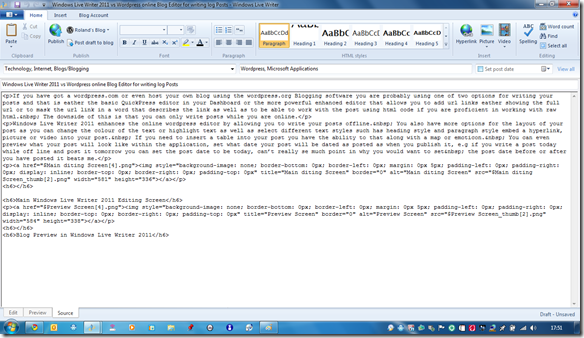
If you have got a wordpress.com or even host your own blog using the wordpress.org Blogging software (for more on wordpress.org visit the official wordpress.org site here) you are probably using one of two options for writing your posts and that is either the basic QuickPress editor widget in your Dashboard or the more powerful enhanced editor that allows you to add url links either showing the full url or to mask the url link in a word that describes the link as well as to be able to work with the post using html code if you are proficient in working with raw html. The downside of this is that you can only write posts while you are online.
The WordPress for BlackBerry Application opens to a screen that lists your blogs, once in your blog you are presented with a list of options. Posts lists your posts (only shows a maximum of 50 posts at a time) where you can view and edit your current posts or create a new post by selecting New from the pop up menu after pressing the menu button, the editor is basic but more powerful than the Mobile Web editor, you have the Title area, a place to add media, tags, categories and to mark your post as a phone draft, draft, private, pending review and published. You can mark the post to be geo tagged or private or public, the main editing box where you write your post and finally a row of basic formatting options.
There is also an option to view, edit or create a new page, the page creation editor is exactly the same as the post editor except there are page creation options instead of geo tagging and marking as public or private.
You can also manage your blog comments as well as reply to comments in the Comments option. The comment editor is even more basic than the post and page editor as you see the basic info of the comment author, their comment, a space to add your reply and the basic formatting bar.
There is an option to add media along with a title, and copy the location of the media to the device clipboard. With the basic WordPress blog you can only add Photos and Audio, if you want to add Video you have to add an upgrade package to your blog account.
The stats option shows 29 days worth of blog views along with a bar graph of the views, you can also see the stats for op Posts & Pages, Referrers, Search Engine Terms, Clicks, and Video Plays. you can view stats for each category mentioned for 7 Days, 30 Days, Quarter, Year or All Time.
The Options Option is a basic settings page that allows you to customize the app how you want it. The final option Refresh allows you to refresh the app.
If you want advanced control over your blog I would recommend the WordPress Web dashboard. If you want to manage your blog while on the go then I would recommend the WordPress for BlackBerry Application.
If you want total control of your blog then I would recommend using the WordPress web dashboard and WordPress for BlackBerry.
Roland
Windows Live Writer 2011 vs WordPress Mobile web editor
In part V of my series of various ways to manage your WordPress blog I'll be comparing Windows Live Writer 2011 with the Mobile Web WordPress site.
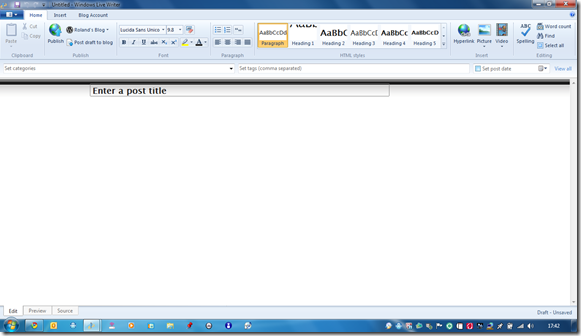
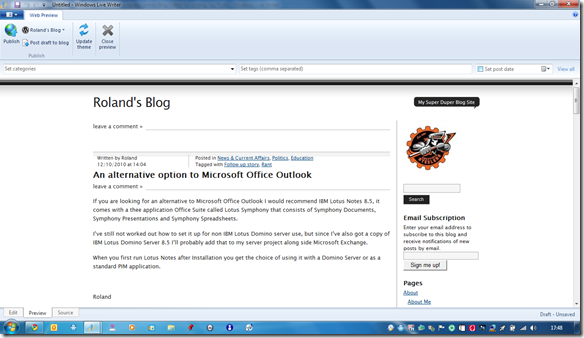
Windows Live Writer 2011 enhances the online wordpress editor by allowing you to write your posts offline. You also have more options for the layout of your post as you can change the colour of the text or highlight text as well as select different text styles such has heading style and paragraph style embed a hyperlink, picture or video into your post. If you need to insert a table into your post you have the ability to that along with a map or emoticon. You can even preview what your post will look like within the application, set what date your post will be dated as posted as when you publish it, e.g if you write a post today while off line and post it tomorrow you can set the post date to be today, can’t really se much point in why you would want to set the post date before or after you have posted it beats me.
Windows Live Writer 2011s interface is very much like Microsoft Office 2010s interface, and the tabbed editor is very much like Microsoft Office SharePoint 2010s/ the Old Microsoft Office Frontpage XP
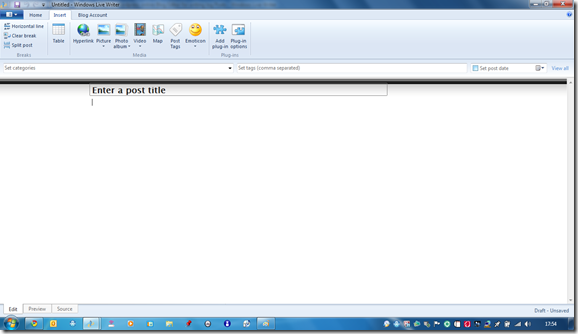
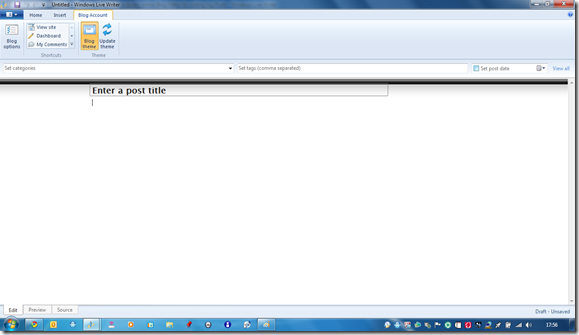
The Menu Ribbon changes to a Web Preview one when you are in the Preview tab, the Edit and Source Ribbon Menus are exactly the same.
As you can see from the blog service list screenshot Windows Live Writer support more than just WordPress. This review is a comparison to the WordPress online editors as I don’t use any of the other blogging services in the list, but as Microsoft have seen a a gap in the offline blogging applications market and created Windows live Writer I’m guessing that the other blogging services online editors are lacking in features.
Windows Live Writer 2011 is part of the Windows Live Essentials 2011 pack available from here.
The Mobile Web WordPress is just a basic text site with a series of tabbed screens. The default one when you go on the site is the stats tab, it lists your WordPress blogs with the number of visitors for today and yesterday, the next tab is the Post tab, it has a drop down menu to select which of your blogs you want to post to, then a title text box, the post text box. the Categories text box and the tags text box and save as draft and post buttons. The editor is more enhanced than the QuickPress widget on your blog Dashboard but it is still basic compared to the standard WordPress editor or Windows Live Writer 2011. Then there is a Bookmark tab and Logout tab.
If you want a quick way to manage the basics of your blog then I recommend the WordPress Mobile Web Dashboard. If you want more control of your blog and the ability to create posts while offline then I recommend Windows Live Writer 2011.
Roland
Windows Live Writer 2011 enhances the online wordpress editor by allowing you to write your posts offline. You also have more options for the layout of your post as you can change the colour of the text or highlight text as well as select different text styles such has heading style and paragraph style embed a hyperlink, picture or video into your post. If you need to insert a table into your post you have the ability to that along with a map or emoticon. You can even preview what your post will look like within the application, set what date your post will be dated as posted as when you publish it, e.g if you write a post today while off line and post it tomorrow you can set the post date to be today, can’t really se much point in why you would want to set the post date before or after you have posted it beats me.
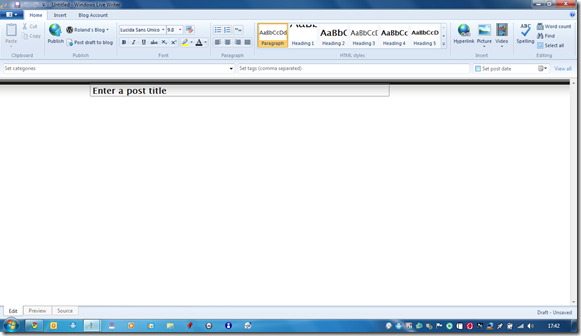
Windows Live Writer 2011s interface is very much like Microsoft Office 2010s interface, and the tabbed editor is very much like Microsoft Office SharePoint 2010s/ the Old Microsoft Office Frontpage XP

Main Windows Live Writer 2011 Editing Screen

Blog Preview in Windows Live Writer 2011

The Windows Live Writer 2011 HTML Editor

The Windows Live Writer 2011 Insert Menu Ribbon

The Windows Live Writer 2011 Blog Account Menu Ribbon
The Menu Ribbon changes to a Web Preview one when you are in the Preview tab, the Edit and Source Ribbon Menus are exactly the same.

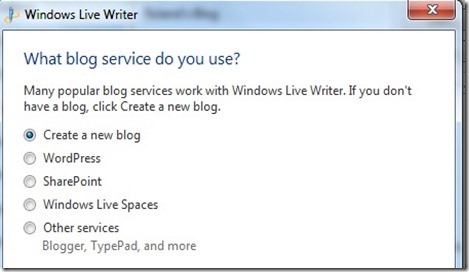
List of logging services supported by Windows Live Writer 2011
As you can see from the blog service list screenshot Windows Live Writer support more than just WordPress. This review is a comparison to the WordPress online editors as I don’t use any of the other blogging services in the list, but as Microsoft have seen a a gap in the offline blogging applications market and created Windows live Writer I’m guessing that the other blogging services online editors are lacking in features.
Windows Live Writer 2011 is part of the Windows Live Essentials 2011 pack available from here.
The Mobile Web WordPress is just a basic text site with a series of tabbed screens. The default one when you go on the site is the stats tab, it lists your WordPress blogs with the number of visitors for today and yesterday, the next tab is the Post tab, it has a drop down menu to select which of your blogs you want to post to, then a title text box, the post text box. the Categories text box and the tags text box and save as draft and post buttons. The editor is more enhanced than the QuickPress widget on your blog Dashboard but it is still basic compared to the standard WordPress editor or Windows Live Writer 2011. Then there is a Bookmark tab and Logout tab.
If you want a quick way to manage the basics of your blog then I recommend the WordPress Mobile Web Dashboard. If you want more control of your blog and the ability to create posts while offline then I recommend Windows Live Writer 2011.
Roland
Windows Live Writer 2011 vs WordPress for BlackBerry
In part IV of my series on the various ways to manage your WordPress blog I'll be comparing Windows Live Writer 2011 with Wordress for BlackBerry.
Windows Live Writer 2011 enhances the online wordpress editor by allowing you to write your posts offline. You also have more options for the layout of your post as you can change the colour of the text or highlight text as well as select different text styles such has heading style and paragraph style embed a hyperlink, picture or video into your post. If you need to insert a table into your post you have the ability to that along with a map or emoticon. You can even preview what your post will look like within the application, set what date your post will be dated as posted as when you publish it, e.g if you write a post today while off line and post it tomorrow you can set the post date to be today, can’t really se much point in why you would want to set the post date before or after you have posted it beats me.
Windows Live Writer 2011s interface is very much like Microsoft Office 2010s interface, and the tabbed editor is very much like Microsoft Office SharePoint 2010s/ the Old Microsoft Office Frontpage XP
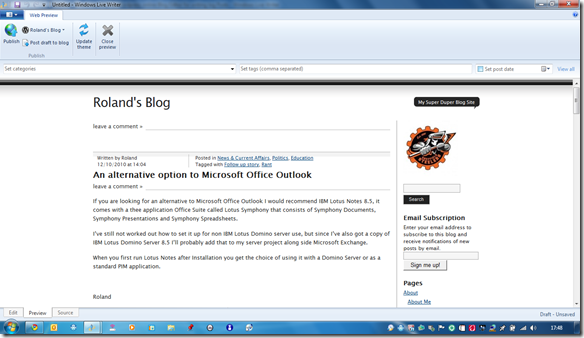
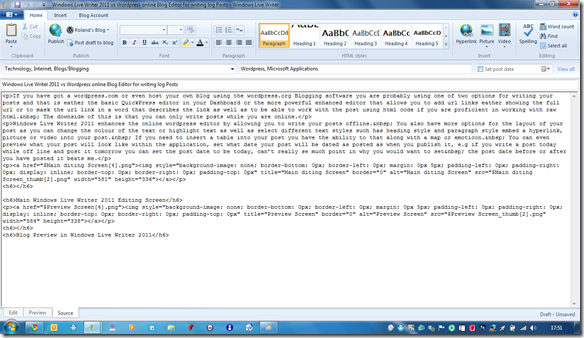
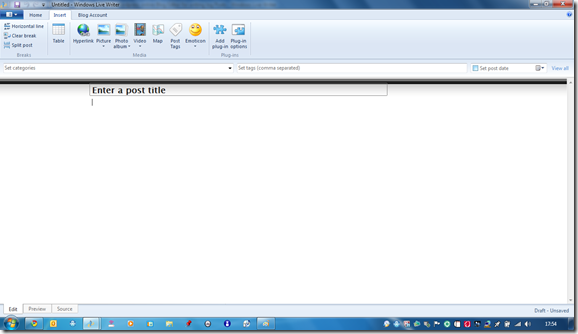

The Menu Ribbon changes to a Web Preview one when you are in the Preview tab, the Edit and Source Ribbon Menus are exactly the same.
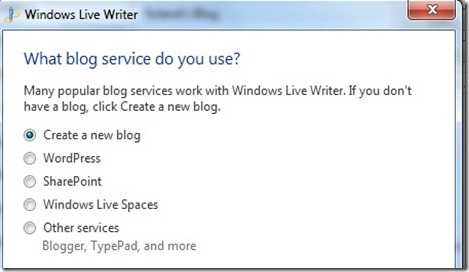
As you can see from the blog service list screenshot Windows Live Writer support more than just WordPress. This review is a comparison to the WordPress online editors as I don’t use any of the other blogging services in the list, but as Microsoft have seen a a gap in the offline blogging applications market and created Windows live Writer I’m guessing that the other blogging services online editors are lacking in features.
Windows Live Writer 2011 is part of the Windows Live Essentials 2011 pack available from here.
The WordPress for BlackBerry Application opens to a screen that lists your blogs, once in your blog you are presented with a list of options. Posts lists your posts (only shows a maximum of 50 posts at a time) where you can view and edit your current posts or create a new post by selecting New from the pop up menu after pressing the menu button, the editor is basic but more powerful than the Mobile Web editor, you have the Title area, a place to add media, tags, categories and to mark your post as a phone draft, draft, private, pending review and published. You can mark the post to be geo tagged or private or public, the main editing box where you write your post and finally a row of basic formatting options.
There is also an option to view, edit or create a new page, the page creation editor is exactly the same as the post editor except there are page creation options instead of geo tagging and marking as public or private.
You can also manage your blog comments as well as reply to comments in the Comments option. The comment editor is even more basic than the post and page editor as you see the basic info of the comment author, their comment, a space to add your reply and the basic formatting bar.
There is an option to add media along with a title, and copy the location of the media to the device clipboard. With the basic WordPress blog you can only add Photos and Audio, if you want to add Video you have to add an upgrade package to your blog account.
The stats option shows 29 days worth of blog views along with a bar graph of the views, you can also see the stats for op Posts & Pages, Referrers, Search Engine Terms, Clicks, and Video Plays. you can view stats for each category mentioned for 7 Days, 30 Days, Quarter, Year or All Time.
The Options Option is a basic settings page that allows you to customize the app how you want it. The final option Refresh allows you to refresh the app.
If you are using a basic web enabled phone from Nokia, Samsung, Motorola etc. then the Web app is fine, But if you are using an iPhone, Nokia Smartphone, BlackBerry, iPad, iPod Touch or Android phone then I’d recommend the dedicated WordPress Application.
If you want a feature packed Mobile blog editor I’d recommend WordPress for BlackBerry. If You wand an advanced editor I’d recommend Windows Live Writer. If you want the best of both I’d recommend Windows Live Writer 2011 and WordPress Online Dashboard + Wordpress for BlackBerry, If like you want the complete package I’d recommend Windows Live Writer 2011 and WordPress Online Dashboard along with WordPress for BlackBerry and WordPress Mobile.
Roland
Windows Live Writer 2011 enhances the online wordpress editor by allowing you to write your posts offline. You also have more options for the layout of your post as you can change the colour of the text or highlight text as well as select different text styles such has heading style and paragraph style embed a hyperlink, picture or video into your post. If you need to insert a table into your post you have the ability to that along with a map or emoticon. You can even preview what your post will look like within the application, set what date your post will be dated as posted as when you publish it, e.g if you write a post today while off line and post it tomorrow you can set the post date to be today, can’t really se much point in why you would want to set the post date before or after you have posted it beats me.
Windows Live Writer 2011s interface is very much like Microsoft Office 2010s interface, and the tabbed editor is very much like Microsoft Office SharePoint 2010s/ the Old Microsoft Office Frontpage XP

Main Windows Live Writer 2011 Editing Screen

Blog Preview in Windows Live Writer 2011

The Windows Live Writer 2011 HTML Editor

The Windows Live Writer 2011 Insert Menu Ribbon

The Windows Live Writer 2011 Blog Account Menu Ribbon
The Menu Ribbon changes to a Web Preview one when you are in the Preview tab, the Edit and Source Ribbon Menus are exactly the same.

List of logging services supported by Windows Live Writer 2011
As you can see from the blog service list screenshot Windows Live Writer support more than just WordPress. This review is a comparison to the WordPress online editors as I don’t use any of the other blogging services in the list, but as Microsoft have seen a a gap in the offline blogging applications market and created Windows live Writer I’m guessing that the other blogging services online editors are lacking in features.
Windows Live Writer 2011 is part of the Windows Live Essentials 2011 pack available from here.
The WordPress for BlackBerry Application opens to a screen that lists your blogs, once in your blog you are presented with a list of options. Posts lists your posts (only shows a maximum of 50 posts at a time) where you can view and edit your current posts or create a new post by selecting New from the pop up menu after pressing the menu button, the editor is basic but more powerful than the Mobile Web editor, you have the Title area, a place to add media, tags, categories and to mark your post as a phone draft, draft, private, pending review and published. You can mark the post to be geo tagged or private or public, the main editing box where you write your post and finally a row of basic formatting options.
There is also an option to view, edit or create a new page, the page creation editor is exactly the same as the post editor except there are page creation options instead of geo tagging and marking as public or private.
You can also manage your blog comments as well as reply to comments in the Comments option. The comment editor is even more basic than the post and page editor as you see the basic info of the comment author, their comment, a space to add your reply and the basic formatting bar.
There is an option to add media along with a title, and copy the location of the media to the device clipboard. With the basic WordPress blog you can only add Photos and Audio, if you want to add Video you have to add an upgrade package to your blog account.
The stats option shows 29 days worth of blog views along with a bar graph of the views, you can also see the stats for op Posts & Pages, Referrers, Search Engine Terms, Clicks, and Video Plays. you can view stats for each category mentioned for 7 Days, 30 Days, Quarter, Year or All Time.
The Options Option is a basic settings page that allows you to customize the app how you want it. The final option Refresh allows you to refresh the app.
If you are using a basic web enabled phone from Nokia, Samsung, Motorola etc. then the Web app is fine, But if you are using an iPhone, Nokia Smartphone, BlackBerry, iPad, iPod Touch or Android phone then I’d recommend the dedicated WordPress Application.
If you want a feature packed Mobile blog editor I’d recommend WordPress for BlackBerry. If You wand an advanced editor I’d recommend Windows Live Writer. If you want the best of both I’d recommend Windows Live Writer 2011 and WordPress Online Dashboard + Wordpress for BlackBerry, If like you want the complete package I’d recommend Windows Live Writer 2011 and WordPress Online Dashboard along with WordPress for BlackBerry and WordPress Mobile.
Roland
WordPress Mobile Web vs WordPress Web editor
In part III of my series on the various ways to manage your WordPress blog I'll be comparing the WordPress Mobile website with the WordPress website.
The Mobile Web WordPress is just a basic text site with a series of tabbed screens. The default one when you go on the site is the stats tab, it lists your WordPress blogs with the number of visitors for today and yesterday, the next tab is the Post tab, it has a drop down menu to select which of your blogs you want to post to, then a title text box, the post text box. the Categories text box and the tags text box and save as draft and post buttons. The editor is more enhanced than the QuickPress widget on your blog Dashboard but it is still basic compared to the standard WordPress editor or Windows Live Writer 2011. Then there is a Bookmark tab and Logout tab.
If you have got a wordpress.com or even host your own blog using the wordpress.org Blogging software (for more on wordpress.org visit the official wordpress.org site here) you are probably using one of two options for writing your posts and that is either the basic QuickPress editor widget in your Dashboard or the more powerful enhanced editor that allows you to add url links either showing the full url or to mask the url link in a word that describes the link as well as to be able to work with the post using html code if you are proficient in working with raw html. The downside of this is that you can only write posts while you are online.
If you want a to write a quick post while you are on the move then I would recommend the WordPress Mobile site, but if you want a more powerful editor then I’d recommend the WordPress web editor.
Roland
The Mobile Web WordPress is just a basic text site with a series of tabbed screens. The default one when you go on the site is the stats tab, it lists your WordPress blogs with the number of visitors for today and yesterday, the next tab is the Post tab, it has a drop down menu to select which of your blogs you want to post to, then a title text box, the post text box. the Categories text box and the tags text box and save as draft and post buttons. The editor is more enhanced than the QuickPress widget on your blog Dashboard but it is still basic compared to the standard WordPress editor or Windows Live Writer 2011. Then there is a Bookmark tab and Logout tab.
If you have got a wordpress.com or even host your own blog using the wordpress.org Blogging software (for more on wordpress.org visit the official wordpress.org site here) you are probably using one of two options for writing your posts and that is either the basic QuickPress editor widget in your Dashboard or the more powerful enhanced editor that allows you to add url links either showing the full url or to mask the url link in a word that describes the link as well as to be able to work with the post using html code if you are proficient in working with raw html. The downside of this is that you can only write posts while you are online.
If you want a to write a quick post while you are on the move then I would recommend the WordPress Mobile site, but if you want a more powerful editor then I’d recommend the WordPress web editor.
Roland
WordPress Mobile Web vs WordPress for BlackBerry
In part II of my series on the various ways to manage your WordPress blog I'll be comparing the WordPress Mobile website with WordPress for BlackBerry.
The Mobile Web WordPress is just a basic text site with a series of tabbed screens. The default one when you go on the site is the stats tab, it lists your WordPress blogs with the number of visitors for today and yesterday, the next tab is the Post tab, it has a drop down menu to select which of your blogs you want to post to, then a title text box, the post text box. the Categories text box and the tags text box and save as draft and post buttons. The editor is more enhanced than the QuickPress widget on your blog Dashboard but it is still basic compared to the standard WordPress editor or Windows Live Writer 2011. Then there is a Bookmark tab and Logout tab.
The WordPress for BlackBerry Application opens to a screen that lists your blogs, once in your blog you are presented with a list of options. Posts lists your posts (only shows a maximum of 50 posts at a time) where you can view and edit your current posts or create a new post by selecting New from the pop up menu after pressing the menu button, the editor is basic but more powerful than the Mobile Web editor, you have the Title area, a place to add media, tags, categories and to mark your post as a phone draft, draft, private, pending review and published. You can mark the post to be geo tagged or private or public, the main editing box where you write your post and finally a row of basic formatting options.
There is also an option to view, edit or create a new page, the page creation editor is exactly the same as the post editor except there are page creation options instead of geo tagging and marking as public or private.
You can also manage your blog comments as well as reply to comments in the Comments option. The comment editor is even more basic than the post and page editor as you see the basic info of the comment author, their comment, a space to add your reply and the basic formatting bar.
There is an option to add media along with a title, and copy the location of the media to the device clipboard. With the basic WordPress blog you can only add Photos and Audio, if you want to add Video you have to add an upgrade package to your blog account.
The stats option shows 29 days worth of blog views along with a bar graph of the views, you can also see the stats for op Posts & Pages, Referrers, Search Engine Terms, Clicks, and Video Plays. you can view stats for each category mentioned for 7 Days, 30 Days, Quarter, Year or All Time.
The Options Option is a basic settings page that allows you to customize the app how you want it. The final option Refresh allows you to refresh the app.
If you are using a basic web enabled phone from Nokia, Samsung, Motorola etc. then the Web app is fine, But if you are using an iPhone, Nokia Smartphone, BlackBerry, iPad, iPod Touch or Android phone then I’d recommend the dedicated WordPress Application.
Roland
The Mobile Web WordPress is just a basic text site with a series of tabbed screens. The default one when you go on the site is the stats tab, it lists your WordPress blogs with the number of visitors for today and yesterday, the next tab is the Post tab, it has a drop down menu to select which of your blogs you want to post to, then a title text box, the post text box. the Categories text box and the tags text box and save as draft and post buttons. The editor is more enhanced than the QuickPress widget on your blog Dashboard but it is still basic compared to the standard WordPress editor or Windows Live Writer 2011. Then there is a Bookmark tab and Logout tab.
The WordPress for BlackBerry Application opens to a screen that lists your blogs, once in your blog you are presented with a list of options. Posts lists your posts (only shows a maximum of 50 posts at a time) where you can view and edit your current posts or create a new post by selecting New from the pop up menu after pressing the menu button, the editor is basic but more powerful than the Mobile Web editor, you have the Title area, a place to add media, tags, categories and to mark your post as a phone draft, draft, private, pending review and published. You can mark the post to be geo tagged or private or public, the main editing box where you write your post and finally a row of basic formatting options.
There is also an option to view, edit or create a new page, the page creation editor is exactly the same as the post editor except there are page creation options instead of geo tagging and marking as public or private.
You can also manage your blog comments as well as reply to comments in the Comments option. The comment editor is even more basic than the post and page editor as you see the basic info of the comment author, their comment, a space to add your reply and the basic formatting bar.
There is an option to add media along with a title, and copy the location of the media to the device clipboard. With the basic WordPress blog you can only add Photos and Audio, if you want to add Video you have to add an upgrade package to your blog account.
The stats option shows 29 days worth of blog views along with a bar graph of the views, you can also see the stats for op Posts & Pages, Referrers, Search Engine Terms, Clicks, and Video Plays. you can view stats for each category mentioned for 7 Days, 30 Days, Quarter, Year or All Time.
The Options Option is a basic settings page that allows you to customize the app how you want it. The final option Refresh allows you to refresh the app.
If you are using a basic web enabled phone from Nokia, Samsung, Motorola etc. then the Web app is fine, But if you are using an iPhone, Nokia Smartphone, BlackBerry, iPad, iPod Touch or Android phone then I’d recommend the dedicated WordPress Application.
Roland
Sunday, 12 December 2010
Windows Live Writer 2011 vs Wordpress web editor
In part I of my series on the various ways to manage your WordPress blog I'll be comparing the WordPress website with Windows Live writer 2011.
If you have got a wordpress.com or even host your own blog using the wordpress.org Blogging software (for more on wordpress.org visit the official wordpress.org site here) you are probably using one of two options for writing your posts and that is either the basic QuickPress editor widget in your Dashboard or the more powerful enhanced editor that allows you to add url links either showing the full url or to mask the url link in a word that describes the link as well as to be able to work with the post using html code if you are proficient in working with raw html. The downside of this is that you can only write posts while you are online.
Windows Live Writer 2011 enhances the online wordpress editor by allowing you to write your posts offline. You also have more options for the layout of your post as you can change the colour of the text or highlight text as well as select different text styles such has heading style and paragraph style embed a hyperlink, picture or video into your post. If you need to insert a table into your post you have the ability to that along with a map or emoticon. You can even preview what your post will look like within the application, set what date your post will be dated as posted as when you publish it, e.g if you write a post today while off line and post it tomorrow you can set the post date to be today, can’t really se much point in why you would want to set the post date before or after you have posted it beats me.
Windows Live Writer 2011s interface is very much like Microsoft Office 2010s interface, and the tabbed editor is very much like Microsoft Office SharePoint 2010s/ the Old Microsoft Office Frontpage XP
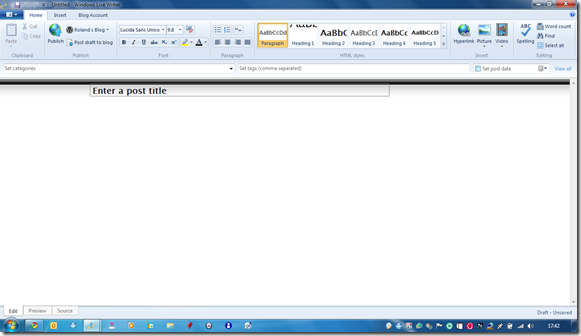
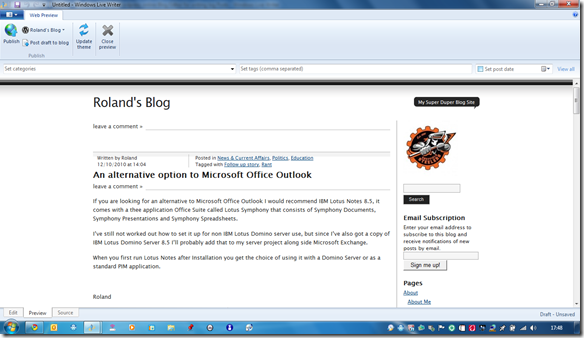
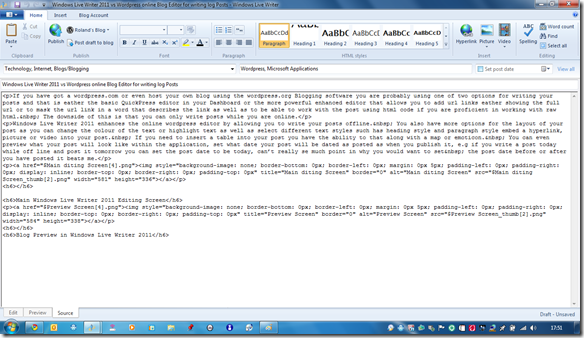
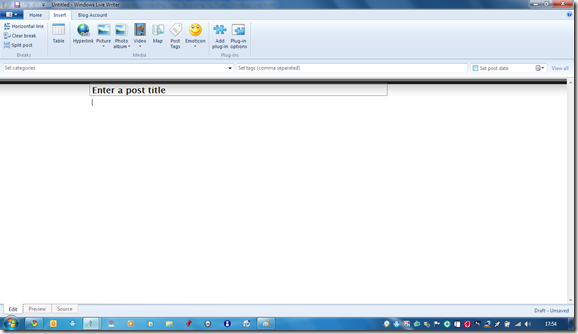
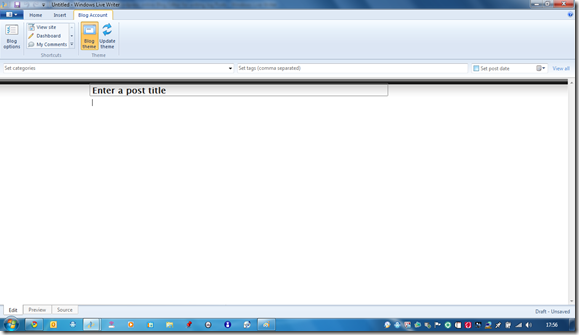
The Menu Ribbon changes to a Web Preview one when you are in the Preview tab, the Edit and Source Ribbon Menus are exactly the same.
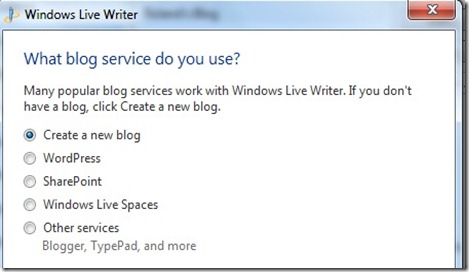
As you can see from the blog service list screenshot Windows Live Writer support more than just WordPress. This review is a comparison to the WordPress online editors as I don’t use any of the other blogging services in the list, but as Microsoft have seen a a gap in the offline blogging applications market and created Windows live Writer I’m guessing that the other blogging services online editors are lacking in features.
Windows Live Writer 2011 is part of the Windows Live Essentials 2011 pack available from here.
Roland
If you have got a wordpress.com or even host your own blog using the wordpress.org Blogging software (for more on wordpress.org visit the official wordpress.org site here) you are probably using one of two options for writing your posts and that is either the basic QuickPress editor widget in your Dashboard or the more powerful enhanced editor that allows you to add url links either showing the full url or to mask the url link in a word that describes the link as well as to be able to work with the post using html code if you are proficient in working with raw html. The downside of this is that you can only write posts while you are online.
Windows Live Writer 2011 enhances the online wordpress editor by allowing you to write your posts offline. You also have more options for the layout of your post as you can change the colour of the text or highlight text as well as select different text styles such has heading style and paragraph style embed a hyperlink, picture or video into your post. If you need to insert a table into your post you have the ability to that along with a map or emoticon. You can even preview what your post will look like within the application, set what date your post will be dated as posted as when you publish it, e.g if you write a post today while off line and post it tomorrow you can set the post date to be today, can’t really se much point in why you would want to set the post date before or after you have posted it beats me.
Windows Live Writer 2011s interface is very much like Microsoft Office 2010s interface, and the tabbed editor is very much like Microsoft Office SharePoint 2010s/ the Old Microsoft Office Frontpage XP

Main Windows Live Writer 2011 Editing Screen

Blog Preview in Windows Live Writer 2011

The Windows Live Writer 2011 HTML Editor

The Windows Live Writer 2011 Insert Menu Ribbon

The Windows Live Writer 2011 Blog Account Menu Ribbon
The Menu Ribbon changes to a Web Preview one when you are in the Preview tab, the Edit and Source Ribbon Menus are exactly the same.

List of logging services supported by Windows Live Writer 2011
As you can see from the blog service list screenshot Windows Live Writer support more than just WordPress. This review is a comparison to the WordPress online editors as I don’t use any of the other blogging services in the list, but as Microsoft have seen a a gap in the offline blogging applications market and created Windows live Writer I’m guessing that the other blogging services online editors are lacking in features.
Windows Live Writer 2011 is part of the Windows Live Essentials 2011 pack available from here.
Roland
Subscribe to:
Posts (Atom)